Codex CLI Automations and Scheduled Tasks: Background Agent Workflows
Codex CLI Automations and Scheduled Tasks: Background Agent Workflows
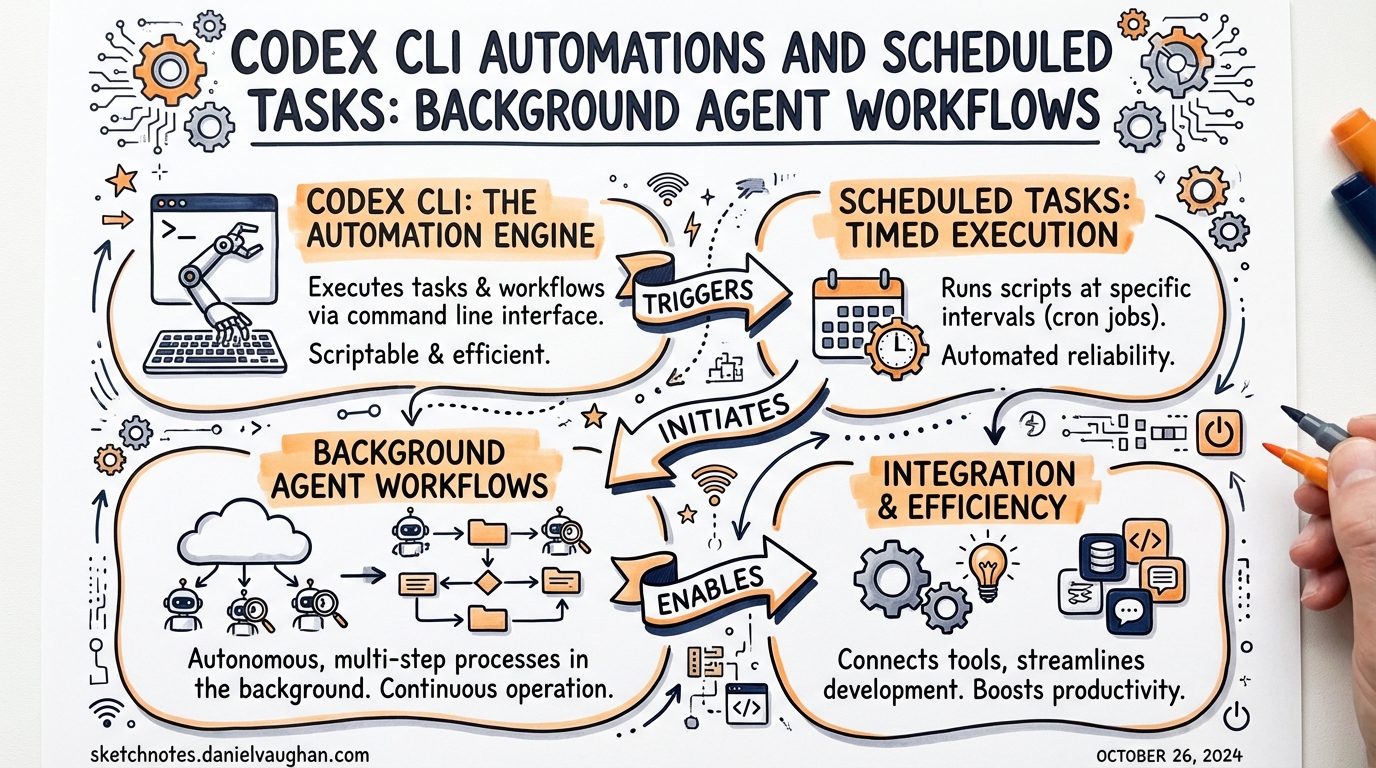
The first generation of agentic coding tools were interactive by nature: you sat in front of a terminal, issued a prompt, watched the diff land, and approved. The second generation is different. Codex now has two distinct paths for unattended execution — the Mac app’s Automations feature and the CLI’s codex exec subcommand — and combining them correctly is what separates occasional AI assistance from a genuine background development pipeline.
This article covers both surfaces: when to use each, how to configure them safely, and the patterns that make background agent runs reliable rather than scary.
Two Surfaces, One Goal
flowchart LR
    subgraph App["Codex Mac/Windows App"]
        A[Automations UI] -->|schedules| B[Background worktree run]
        B -->|surfaces results| C[Review inbox]
    end
    subgraph CLI["Terminal / CI"]
        D[codex exec] -->|non-interactive| E[stdout / JSONL]
        E -->|exit code| F[Shell / GitHub Actions]
    end
    App -. "same model, same AGENTS.md" .-> CLI
The Mac app launched on 2 February 2026 and Windows followed on 4 March 2026.1 Automations are a first-class feature of the app, designed for recurring tasks that should run while you sleep. codex exec is the CLI counterpart: a single-shot, scriptable invocation suitable for cron jobs, GitHub Actions, and anything that needs an exit code.
They share the same model, the same AGENTS.md context, and the same sandbox machinery. The choice between them is mostly about where you want results to land — in a review queue or on stdout.
Mac App Automations
Creating an Automation
Automations live in the app sidebar. Each automation bundles three things:
- A prompt — plain English instruction describing the recurring task
- Optional skills — invoke with
$skill-namesyntax for domain-specific tooling2 - A schedule — hourly, daily, weekly, or custom cadence
Before scheduling, test the prompt in a regular interactive thread first. Confirm the model, reasoning effort, and tools behave as expected and that the resulting diff is something you’d actually want.2
Worktree vs Local Project
In a Git repository, each automation run can target either your local working directory or a dedicated background worktree.2
| Mode | When to use |
|---|---|
| Local project | Automations that need to read the current working state (e.g., issue triage that references uncommitted drafts) |
| Worktree | Anything that modifies files — keeps automation changes isolated from in-progress work |
Worktrees require periodic cleanup; a daily automation on a two-week schedule will accumulate worktrees fast.2
The Review Inbox
When an automation finishes, results appear in the app’s Triage inbox rather than demanding immediate attention.2 The inbox supports filtering by unread status and archiving completed runs. Avoid pinning runs unless you intend to keep the associated worktree alive — pinned runs block worktree cleanup.
Sandbox Configuration for Automations
Automations use approval_policy = "never" when your organisation policy permits, meaning Codex acts without confirmation.2 That’s powerful and dangerous. The recommended baseline:
# ~/.codex/config.toml
[sandbox]
mode = "workspace-write"
approval_policy = "never"

[[sandbox.rules]]
command = "npm test"
policy = "allow"

[[sandbox.rules]]
command = "git commit"
policy = "allow"
If your sandbox mode is full-access, background automations carry elevated risk — Codex may modify files, run commands, and access the network without any prompt.2 Unless you’re running inside a container or ephemeral VM, workspace-write is the safer default.
codex exec: Scripted Non-Interactive Execution
For CI/CD pipelines, cron jobs, and script-driven automation, codex exec is the right primitive.3 It runs a single task non-interactively, streams progress to stderr, and prints final agent output to stdout. Exit code semantics are meaningful — automation tools can gate on success or failure.
Core Flags
# Basic execution
codex exec "Update CHANGELOG with commits since last tag"

# Allow file writes
codex exec --full-auto "Regenerate API docs from JSDoc comments"

# Broader access (use only in isolated environments)
codex exec --sandbox danger-full-access "Run database migration scripts"

# Prevent writing session files to disk
codex exec --ephemeral "Summarise open GitHub issues"

# Skip Git repo check (useful in non-repo automation contexts)
codex exec --skip-git-repo-check "Audit config files in /etc/app"
The CODEX_API_KEY environment variable is the recommended authentication approach for non-interactive runs — it is supported exclusively in codex exec and avoids reading ~/.codex/auth.json from a CI runner.3
JSON Output for Downstream Scripting
When you need machine-readable output, --json converts stdout to a JSONL stream.3 Every event emits one JSON object per line:
codex exec --json "Analyse test coverage and report gaps" | jq 'select(.type == "turn.completed")'
Event types include thread.started, turn.started, turn.completed, turn.failed, and item.* events for individual operations (commands executed, files changed, MCP tool calls, web searches).3 The turn.completed event includes token usage fields (input_tokens, cached_input_tokens, output_tokens) — useful for cost tracking across a pipeline.
For structured data you want to parse reliably, --output-schema constrains the final response to a JSON Schema:
# Define expected output shape
cat > /tmp/coverage-schema.json <<'EOF'
{
  "type": "object",
  "properties": {
    "overall_pct": { "type": "number" },
    "uncovered_files": { "type": "array", "items": { "type": "string" } },
    "recommendation": { "type": "string" }
  },
  "required": ["overall_pct", "uncovered_files"]
}
EOF

codex exec --output-schema /tmp/coverage-schema.json \
  "Analyse test coverage. Return JSON matching the schema." \
  | jq .overall_pct
This is the right pattern for automation steps that feed structured data into downstream jobs — release pipelines, Slack notifications, or dashboard updates.4
Writing Output to a File
codex exec \
  -o /tmp/release-notes.md \
  "Generate release notes from commits since v2.3.0"
-o (alias --output-last-message) writes the final agent message to a file while still printing to stdout — useful when you need both human-readable output in CI logs and a file for subsequent steps.3
Scheduling Patterns
GitHub Actions
# .github/workflows/daily-triage.yml
name: Daily Issue Triage
on:
  schedule:
    - cron: '0 8 * * 1-5'   # Weekdays at 08:00 UTC

jobs:
  triage:
    runs-on: ubuntu-latest
    steps:
      - uses: actions/checkout@v4
      - uses: actions/setup-node@v4
        with: { node-version: '22' }
      - run: npm i -g @openai/codex
      - name: Triage stale issues
        run: |
          codex exec --full-auto \
            "Review open GitHub issues older than 14 days. \
             Add a 'needs-triage' label to any without labels. \
             Comment with a brief summary if the issue lacks a clear description."
        env:
          CODEX_API_KEY: $
          GITHUB_TOKEN: $
Cron + Shell Script
#!/usr/bin/env bash
# /usr/local/bin/nightly-health-check.sh
set -euo pipefail

REPO=/home/app/project
LOG=/var/log/codex-health-$(date +%Y%m%d).jsonl

cd "$REPO"

codex exec \
  --json \
  --sandbox workspace-write \
  "Check for dependency vulnerabilities using npm audit. \
   Fix any critical vulnerabilities automatically. \
   Output a JSON summary of what was fixed." \
  >> "$LOG" 2>&1

# Exit code propagates — cron will report failure via mail
Add to crontab:
0 3 * * * /usr/local/bin/nightly-health-check.sh
Session Resume for Multi-Step Automation
codex exec resume preserves the original transcript and plan history:4
# Run initial analysis
codex exec "Identify all deprecated API usages in src/"

# Next day, continue with context intact
codex exec resume --last "Now generate replacement stubs for everything you flagged yesterday"
This is particularly useful when an automation finds problems that need multi-step remediation across runs.
Error Handling and Observability
Exit Codes
codex exec exits with a non-zero code on failure — use this to gate downstream steps:
if ! codex exec --full-auto "Run migration and verify schema"; then
  echo "Migration failed — rolling back" >&2
  git checkout HEAD -- db/schema.sql
  exit 1
fi
MCP Server Failures Are Fatal
If an MCP server is configured with required = true and fails to initialise, codex exec exits with an error rather than continuing without that server.3 Design your automation’s MCP dependencies accordingly — mark servers required = false if the task can succeed without them, and required = true only when a missing server should be a hard stop.
Token Budget Monitoring
Parse token usage from JSONL output to catch runaway agents before they exhaust your quota:
codex exec --json "Refactor the payments module" \
  | tee /tmp/run.jsonl \
  | jq -r 'select(.type=="turn.completed") | "Tokens used: \(.usage.input_tokens + .usage.output_tokens)"'
Automation Architecture: A Practical Pattern
For teams running multiple background agents, a common pattern layers the two surfaces:
flowchart TD
    CR[Cron / GitHub Action] -->|triggers| CE["codex exec (CI runner)"]
    CE -->|structured JSON| DS[Downstream service]
    MA[Mac App Automations] -->|background run| WK[Isolated worktree]
    WK -->|diff ready| RI[Review inbox]
    RI -->|developer reviews| PR[Pull request]
    DS -->|opens issue / PR| GH[GitHub]

    style CE fill:#1a1a2e,color:#e0e0ff
    style MA fill:#1a1a2e,color:#e0e0ff
- CI runners get
codex exec— ephemeral, auditable, structured output - Local machine / always-on services get Mac app Automations — persistent worktrees, review-queue surfacing
- Both feed into GitHub via issues, PRs, or direct commits depending on the task’s risk profile
When Not to Schedule an Automation
Background agents are powerful, and that makes them easy to misuse. Some guardrails:
- Don’t automate write operations in
full-accessmode outside an isolated container. A malformed prompt + unguarded sandbox = unintended file destruction.2 - Don’t schedule high-frequency runs on expensive models. A 15-minute automation using
xhighreasoning on every commit will exhaust your budget quickly. Useminimalorloweffort for triage and labelling tasks; reservemedium+ for refactoring or migration work. - Don’t skip manual testing first. The review-queue friction in the Mac app exists for a reason — use it while you build confidence in a new automation prompt.2
Summary
| Surface | Best for | Output | Auth |
|---|---|---|---|
| Mac app Automations | Recurring tasks, worktree isolation, review-queue workflow | Review inbox | Logged-in session |
codex exec |
CI/CD, cron, scripts, structured pipelines | stdout / JSONL / file | CODEX_API_KEY env var |
The Mac app’s Automations feature and codex exec are complementary, not competing. Use Automations when you want a human to review results before they land; use codex exec when you want reliable, machine-readable, exit-code-driven execution in a pipeline. Build both into your workflow and you have the makings of a background development process that keeps shipping while you focus on the work that actually requires your attention.
Citations
-
OpenAI, “Introducing the Codex App”, February 2026. Mac app launched 2 February 2026, Windows app 4 March 2026. https://openai.com/index/introducing-the-codex-app/ ↩
-
OpenAI Developer Docs, “Automations – Codex app”. Covers scheduling, worktree modes, sandbox settings, approval policies, and review inbox. https://developers.openai.com/codex/app/automations ↩ ↩2 ↩3 ↩4 ↩5 ↩6 ↩7 ↩8 ↩9
-
OpenAI Developer Docs, “Non-interactive mode – Codex”. Full reference for
codex execflags, JSONL output events,--output-schema,CODEX_API_KEY, and MCP required-server behaviour. https://developers.openai.com/codex/noninteractive ↩ ↩2 ↩3 ↩4 ↩5 ↩6 -
OpenAI Developer Docs, “Features – Codex CLI”.
codex exec resumeand--attemptsflag for cloud multi-attempt runs. https://developers.openai.com/codex/cli/features ↩ ↩2