Plan Mode Mechanics: Enter vs Tab, Syntax Highlighting and Inline Editing
Plan Mode Mechanics: Enter vs Tab, Syntax Highlighting and Inline Editing
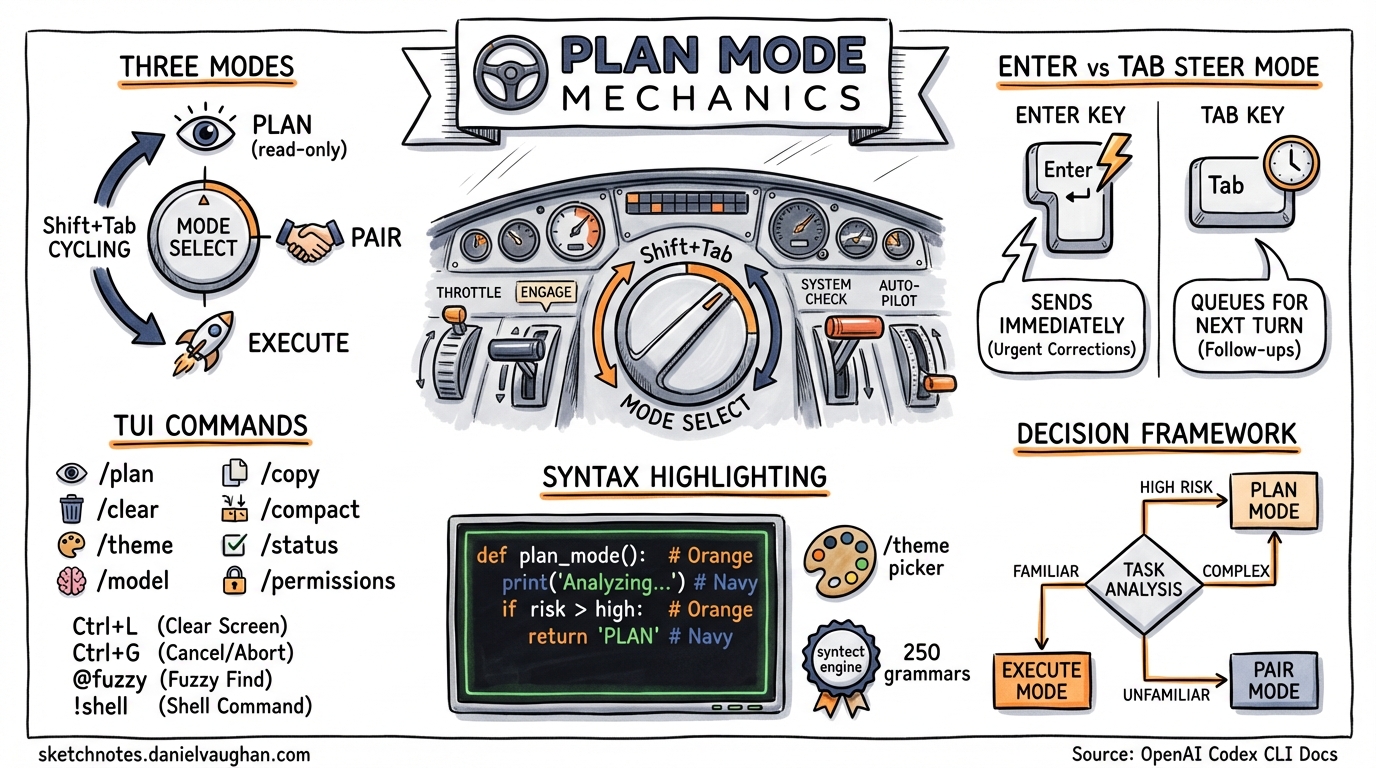
Codex CLI’s terminal interface has evolved well beyond a simple prompt-and-response loop. Between plan mode, steer mode, and a rich set of TUI enhancements, the CLI now offers a genuinely interactive development experience. This article unpacks the specific mechanics — the keystrokes, the mode transitions, and the visual tooling — that make it all work.
Collaboration Modes: Plan, Pair and Execute
Since v0.96.0, Codex CLI ships with three collaboration modes enabled by default1. Each mode represents a different level of agent autonomy:
- Plan — design only. The model reads files and analyses the codebase, then proposes an implementation plan without writing anything. File mutations are suppressed at the prompt level2.
- Pair — interactive implementation. The agent reads and writes files, but every change requires your approval before it lands.
- Execute — autonomous execution. The agent works through the task independently, applying changes as it goes.
You cycle through them with Shift+Tab, or jump directly with the /plan slash command1. The current mode is displayed in the TUI footer and via /status.
The Prompt-Level Constraint
An important subtlety: plan mode is enforced at the prompt level, not via a runtime sandbox2. The system prompt instructs the model not to write files, but there is no physical block on mutations. For genuinely safety-critical work, combine plan mode with a git stash or an isolated branch as a belt-and-braces measure.
flowchart LR
    A["Plan Mode\n(read-only design)"] -->|Shift+Tab| B["Pair Mode\n(interactive edits)"]
    B -->|Shift+Tab| C["Execute Mode\n(autonomous)"]
    C -->|Shift+Tab| A
    A -->|"/plan"| A
    B -->|Approve plan| C
Enter vs Tab: The Steer Mode Mechanics
Steer mode, stable since v0.98.03, is arguably the CLI’s most distinctive interaction pattern. Rather than waiting for the agent to finish a turn before providing feedback, you can redirect it mid-execution. Two keys control the timing:
| Key | Behaviour | Use Case |
|---|---|---|
| Enter | Sends instructions immediately — the agent sees them during the current turn | Urgent corrections: “Use bcrypt instead of argon2” |
| Tab | Queues instructions for the next turn — the agent finishes its current work first | Follow-up tasks: “After this, add the migration script” |
This distinction matters. Enter interrupts; Tab appends. Choosing wrong doesn’t break anything, but it changes the agent’s context window at the point of injection.
When to Use Each
flowchart TD
    S["Agent is running"] --> Q{"Is this urgent?"}
    Q -->|"Yes — wrong approach,\nbug, or priority change"| E["Press Enter\n(immediate injection)"]
    Q -->|"No — additional work\nfor after this turn"| T["Press Tab\n(queue for next turn)"]
    E --> R1["Agent sees instruction\nduring current turn"]
    T --> R2["Agent processes instruction\nafter current turn completes"]
Enter examples:
- The agent is refactoring a module but chose the wrong design pattern — redirect immediately
- You spot a bug in the approach before it propagates further
- Requirements changed mid-task and the current direction is now invalid
Tab examples:
- You want tests written after the current implementation finishes
- You’d like the agent to update documentation once it’s done with the code
- You want to queue a scope addition without disrupting the current flow
Syntax Highlighting and the /theme System
Version 0.105.0 introduced syntax highlighting for fenced code blocks and file diffs in the TUI[^4]. The implementation uses syntect paired with two-face, providing approximately 250 language grammars and 32 bundled themes4 — the same engine that powers tools like bat and delta.
Configuring Themes
The /theme command opens an interactive picker with live preview4. Your selection persists to ~/.codex/config.toml under the tui.theme key:
[tui]
theme = "Monokai Extended"
For custom themes, drop standard .tmTheme files into ~/.codex/themes/ and they appear in the picker alongside the bundled options[^4].
Performance Guardrails
The highlighting engine caps processing at 512 KB or 10,000 lines per block4, preventing pathological delays on massive diffs. If a block exceeds these limits, it falls back to plain-text rendering. The total binary size increase from adding syntect was roughly 3 MB — about 1% of the Codex CLI binary4.
Known Limitations
The diff view has a documented issue where background colours defined in .tmTheme scope rules for markup.inserted, markup.deleted, and markup.changed are ignored5. The diff view renders with hardcoded red/green backgrounds regardless of theme settings. This is tracked upstream and may be resolved in a future release.
TUI Commands Reference
Beyond the mode-switching and highlighting features, the TUI includes a set of utility commands that have accumulated across recent releases:
| Command | Description | Notes |
|---|---|---|
/plan |
Switch to plan mode (optionally with an inline prompt) | Accepts /plan "redesign the API" |
/copy |
Copy the latest completed output to clipboard | Unavailable before first output6 |
/clear |
Clear the terminal and start a fresh chat | Resets conversation history |
/compact |
Summarise conversation to free tokens | Preserves critical context6 |
/theme |
Open the syntax highlighting theme picker | Live preview, persistent config[^4] |
/title |
Set the terminal window title | v0.117.0+3 |
/status |
Display session config, mode, and token usage | Shows remaining context capacity6 |
/model |
Switch model and reasoning effort mid-session | No restart required |
/permissions |
Adjust approval policy mid-session | Toggle between Auto and Read Only |
Keyboard Shortcuts
| Shortcut | Action |
|---|---|
| Shift+Tab | Cycle Plan → Pair → Execute |
| Ctrl+L | Clear screen (preserves conversation) |
| Ctrl+G | Open prompt in external editor |
| Ctrl+C | Cancel current operation (twice to quit) |
| Esc + Esc | Edit previous message (when composer is empty) |
| @ | Fuzzy file search — attach files to context |
| ! | Execute shell command inline |
| ↑/↓ | Navigate draft history |
Note the distinction between /clear and Ctrl+L: the slash command resets both the terminal display and the conversation, whilst the keyboard shortcut only clears the visual output6.
Plan Mode in Practice: A Decision Framework
Choosing the right collaboration mode depends on task risk and complexity. Here’s a practical framework:
flowchart TD
    T["New task"] --> R{"High risk?\n(production, security,\ndata migration)"}
    R -->|Yes| P["Start in Plan mode"]
    R -->|No| C{"Complex?\n(multi-file, architectural)"}
    C -->|Yes| P
    C -->|No| D{"Familiar pattern?"}
    D -->|Yes| X["Execute mode"]
    D -->|No| PR["Pair mode"]
    P --> REV["Review plan"]
    REV --> IMPL["Switch to Pair/Execute\nfor implementation"]
For high-risk or architecturally complex work, start in plan mode. Review the proposed approach, iterate on it with follow-up prompts, then switch to pair or execute mode once the plan is solid. For routine, well-understood tasks — running a familiar refactoring pattern, adding a standard endpoint — execute mode gets out of the way.
The combination of plan-first design and mid-execution steering means you can maintain tight control over the agent’s direction without sacrificing the speed of autonomous execution. The key insight: plan mode sets the direction; steer mode keeps it on course.
Citations
| [^4]: [Features — Codex CLI | OpenAI Developers](https://developers.openai.com/codex/cli/features) |
-
Codex Plan Mode: Stop Code Drift with Plan→Execute (2026) — SmartScope ↩ ↩2
-
Introducing Plan Mode: A Game Changer for Codex CLI Users — Oreate AI Blog ↩ ↩2
-
Codex CLI: The Definitive Technical Reference — Blake Crosley ↩ ↩2
-
feat(tui): syntax highlighting via syntect with theme picker — GitHub PR #11447 ↩ ↩2 ↩3 ↩4
-
Codex CLI themes are genuinely unusable — GitHub Issue #12912 ↩