Codex CLI with Playwright MCP: Browser Automation Through Accessibility Snapshots
Codex CLI with Playwright MCP: Browser Automation Through Accessibility Snapshots
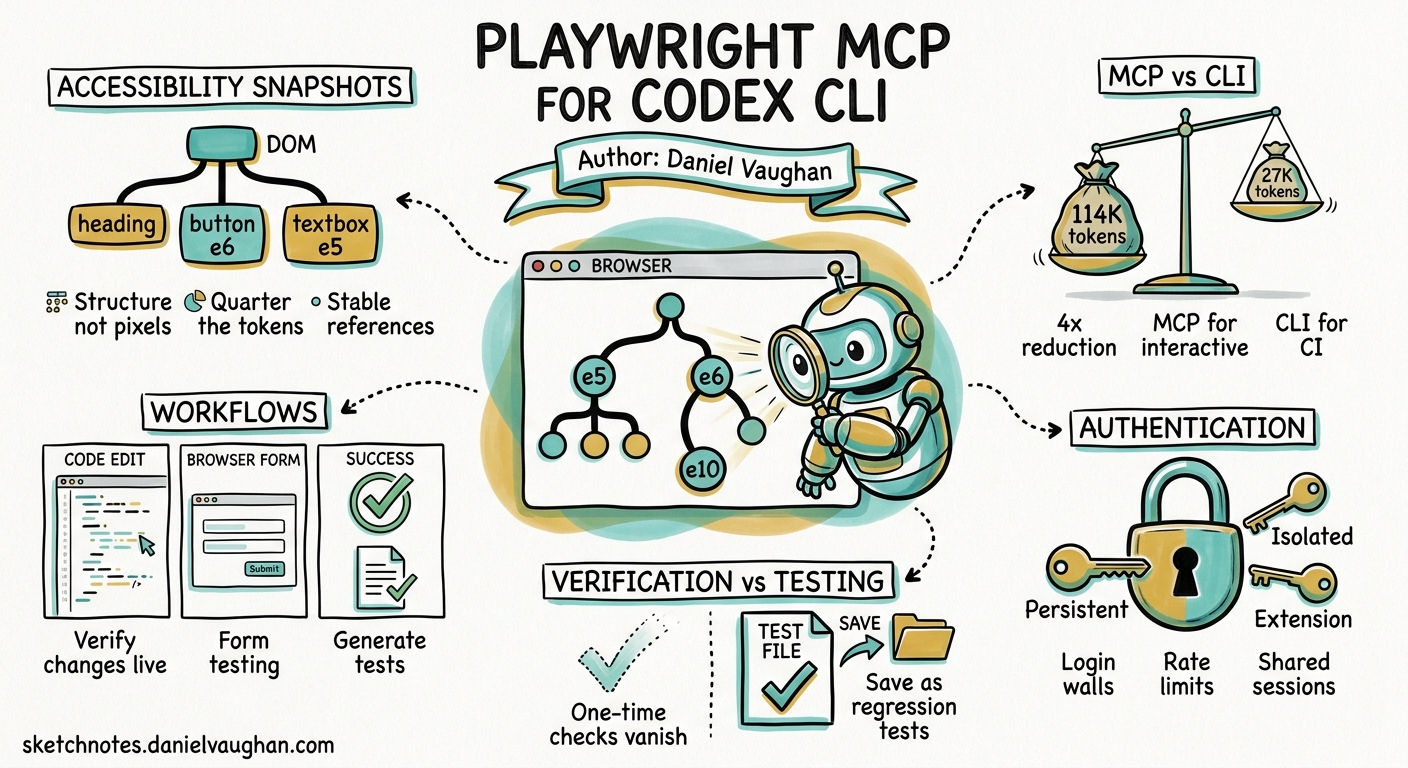
Codex CLI can read your code, run your tests, and fix your linter errors, but until you give it a browser, it cannot see what your users see. Playwright MCP bridges that gap. Microsoft’s official @playwright/mcp package exposes 25+ browser automation tools through the Model Context Protocol, letting Codex navigate pages, fill forms, click buttons, and verify rendered output, all without screenshots or a vision model1.
The key design decision: Playwright MCP returns structured accessibility snapshots instead of pixel images. Each interactive element gets a stable reference such as e5 for a textbox or e10 for a checkbox. The agent reads a compact text representation of the page structure, acts on elements by reference, and consumes roughly a quarter of the tokens a screenshot-based approach would need2. For Codex CLI, this means browser-driven verification becomes cheap enough to run routinely rather than as an occasional luxury.
How accessibility snapshots work
When Playwright MCP captures a page, it reads the browser’s accessibility tree, the same semantic structure that screen readers use. The result looks like this:
- heading "Dashboard" [level=1]
- navigation "Main"
  - link "Home" [ref=e1]
  - link "Settings" [ref=e2]
  - link "Profile" [ref=e3]
- region "Content"
  - heading "Recent Activity" [level=2]
  - list
    - listitem "Deployed v2.4.1 — 3 hours ago"
    - listitem "Merged PR #847 — 5 hours ago"
  - textbox "Search" [ref=e5]
  - button "Filter" [ref=e6]
Every interactive element carries a stable reference. The agent says ‘click e6’ or ‘type into e5’, and Playwright resolves the action against the live DOM. No coordinate guessing, no fragile CSS selectors, no vision model inference.
This matters for token economics. A typical browser session through MCP consumes around 114,000 tokens. The same workflow through Playwright’s newer CLI mode (which saves snapshots to disk as YAML files rather than returning them inline) uses around 27,000 tokens, a 4x reduction3. For Codex CLI, the MCP approach is the natural fit because the agent already operates within an MCP-connected session, but the cost difference is worth understanding when planning CI budgets.
When snapshots fall short
Accessibility snapshots describe semantic structure, not visual rendering. They cannot verify:
- Colour accuracy, contrast ratios, or brand palette compliance
- Image content, alt text correctness against actual images, or canvas rendering
- Animation behaviour, transition timing, or visual polish
- Layout precision, overlapping elements, or responsive breakpoints
Playwright MCP includes a browser_take_screenshot tool as a vision fallback for these cases1. The hybrid approach, snapshots for structure and screenshots for visual verification, gives the agent both speed and visual awareness when it needs them.
Setting up Playwright MCP with Codex CLI
Prerequisites
- Node.js 20 or newer
- Codex CLI with MCP support enabled
Configuration
Add the Playwright MCP server to ~/.codex/config.toml:
[mcp_servers.playwright]
command = "npx"
args = ["@playwright/mcp@latest", "--headless"]
The --headless flag is essential for CI and sandbox environments where no display is available. For local development, omit it to watch the browser in real time.
To use a specific browser:
[mcp_servers.playwright]
command = "npx"
args = ["@playwright/mcp@latest", "--browser=firefox"]
Supported browsers: Chromium (default), Firefox, and WebKit1.
Verify the connection
In the TUI, run /mcp to confirm the Playwright server is connected. You should see tools such as browser_navigate, browser_click, browser_type, browser_snapshot, and browser_take_screenshot in the tool list.
Practical workflows
Verifying a code change in the browser
The simplest use case: after the agent modifies a component, it opens the browser and checks the result.
> Fix the broken date picker in src/components/DatePicker.tsx,
  then verify it works at http://localhost:3000/booking
The agent edits the code, navigates to the page, interacts with the date picker through accessibility references, and confirms the fix renders correctly. This closes the feedback loop within a single Codex session rather than requiring you to manually check the browser.
Form testing
Playwright MCP handles form interactions through element references:
> Navigate to http://localhost:3000/signup, fill in the registration form
  with test data, submit it, and verify the success message appears
The agent reads the accessibility snapshot, identifies form fields by their labels, fills each one, clicks submit, and reads the resulting page state, all through structured references rather than coordinate-based clicking.
Generating Playwright tests from browser exploration
A more advanced pattern: the agent explores the application, then writes test code based on what it found.
> Navigate through the checkout flow at http://localhost:3000/cart.
  Document every step, then generate a Playwright test file
  at tests/e2e/checkout.spec.ts that replays the flow.
The agent uses MCP tools to walk the flow, captures the interaction sequence, and generates a standard Playwright test file using recommended locator strategies (getByRole, getByTestId, getByLabel) rather than brittle CSS selectors4.
Automated verification with PostToolUse hooks
Wire browser verification into the agent’s workflow automatically:
# .codex/config.toml
[[hooks]]
event = "PostToolUse"
tool_name = "write"
command = """
if echo "$TOOL_INPUT" | grep -qE '\\.(tsx|jsx|vue|svelte)$'; then
  echo "Component file changed — browser verification recommended" >&2
fi
"""
This nudges the agent to verify component changes in the browser without making it mandatory. For stricter enforcement, exit with code 2 to block the tool call until verification passes5.
MCP vs CLI: choosing the right mode
Since Playwright 1.59, Microsoft offers two integration paths3:
| Aspect | Playwright MCP | Playwright CLI |
|---|---|---|
| Best for | Chat agents, TUI sessions | Headless CI, batch automation |
| Token usage | ~114,000 per session | ~27,000 per session (4x less) |
| Context approach | Full accessibility tree in each response | Saves snapshots to disk as YAML |
| Integration | Native MCP transport | Command-line tool calls |
| Codex CLI fit | TUI sessions, interactive verification | codex exec batch runs |
For interactive Codex CLI sessions, MCP is the natural choice because the agent already communicates through MCP. For codex exec batch runs in CI, the CLI mode’s 4x token reduction may justify the integration overhead3.
CI integration with codex exec
For non-interactive browser verification in CI:
codex exec \
  "Navigate to https://staging.example.com/dashboard. \
   Verify the navigation links render correctly. \
   Check that the search box is functional. \
   Take a screenshot of the final state. \
   Report any accessibility issues found in the snapshot." \
  --model gpt-5.6-luna \
  --sandbox network-write
The --sandbox network-write flag is necessary because Playwright MCP needs outbound network access to reach the target URL6.
For structured reporting:
codex exec \
  "Run a smoke test on https://staging.example.com. \
   Check the home, about, and contact pages load correctly. \
   Report results as structured JSON." \
  --model gpt-5.6-luna \
  --output-schema ./schemas/smoke-test.json \
  -o ./reports/smoke-test-results.json
Authentication: the persistent problem
Most agent browser sessions start cold. Anything behind a login wall means re-authenticating on every run, which triggers rate limits, CAPTCHA challenges, and security alerts2.
Playwright MCP offers three profile modes to address this1:
-
Persistent (default): maintains login state across sessions. The browser profile is stored in the platform cache directory. Suitable for local development where you log in once and the agent reuses the session.
-
Isolated (
--isolatedflag): fresh session each time. Use for testing unauthenticated flows or when session contamination is a concern. -
Browser extension (
--extensionflag): connects to an already-running browser. You log in manually, then hand the authenticated session to the agent.
For CI, the most reliable pattern is saving and restoring storage state:
# Save auth state after manual login
npx playwright codegen --save-storage=auth.json

# Configure MCP to restore it
# (pass as environment variable or pre-load in CI step)
The browser.bind() API introduced in Playwright 1.59 also allows a single launched browser to be shared across the MCP server, the CLI, and custom Playwright clients, enabling workflows where a human handles authentication and the agent handles everything after3.
Verification is not testing
A critical distinction from the Shiplight team’s analysis: one-time browser verification and persistent regression tests are different things2. When Codex verifies a fix in the browser, that check runs once and disappears. Tomorrow’s regression is uncaught because today’s verification left no artefact.
The gap between verification and testing has two solutions:
-
Generate test files from verification: after the agent verifies a fix through MCP, instruct it to write a Playwright test that replays the same interaction. The test lives in your repository and runs in CI on every push.
-
Self-healing test layers: tools such as Shiplight add intent-based YAML tests on top of Playwright MCP. Each test step stores its semantic purpose as natural language, and when the UI changes, the AI re-resolves the correct element without human intervention7. This addresses the maintenance burden that makes teams abandon browser tests.
Limitations
-
Token cost at scale: a single browser session consumes 27,000 to 114,000 tokens depending on the mode. Running comprehensive browser suites through the agent is expensive compared to standard Playwright test execution. Use MCP for exploration and targeted verification, not bulk regression.
-
No native mobile: Playwright MCP covers desktop browsers (Chromium, Firefox, WebKit) and can emulate mobile viewports, but it does not automate native iOS or Android applications2.
-
Dynamic content timing: the agent may read a snapshot before asynchronous content finishes loading. Use explicit wait conditions in your prompts (‘wait for the dashboard data to load before capturing the snapshot’).
-
Sandbox restrictions: Codex CLI’s sandbox must permit outbound network access for the browser to reach target URLs. The
--sandbox network-writeor--sandbox workspace-writeflags are typically required6. -
Accessibility tree gaps: some UI frameworks generate poor accessibility trees, particularly canvas-heavy applications, custom web components without ARIA attributes, and iframes with cross-origin restrictions. The agent’s understanding is only as good as the page’s accessibility markup.
Citations
-
Playwright, ‘Getting started with Playwright MCP,’ https://playwright.dev/docs/getting-started-mcp — accessed August 2026. ↩ ↩2 ↩3 ↩4
-
Shiplight, ‘Playwright MCP: Real Browsers for AI Agents,’ https://www.shiplight.ai/blog/playwright-mcp — accessed August 2026. ↩ ↩2 ↩3 ↩4
-
TestDino, ‘Playwright MCP Explained: Setup, Config and Real-World Examples,’ https://testdino.com/blog/playwright-mcp — accessed August 2026. ↩ ↩2 ↩3 ↩4
-
Playwright, ‘Locators,’ https://playwright.dev/docs/locators — accessed August 2026. ↩
-
OpenAI, ‘Hooks,’ https://learn.chatgpt.com/docs/hooks — accessed August 2026. ↩
-
OpenAI, ‘Sandboxing,’ https://learn.chatgpt.com/docs/sandboxing — accessed August 2026. ↩ ↩2
-
Shiplight, ‘Add Automated Testing to Cursor, Copilot and Codex,’ https://www.shiplight.ai/blog/add-testing-to-ai-coding-tools-cursor-copilot-codex — accessed August 2026. ↩