Installing Codex CLI: Package Managers, Shell Completions and First-Run Setup
Installing Codex CLI: Package Managers, Shell Completions and First-Run Setup
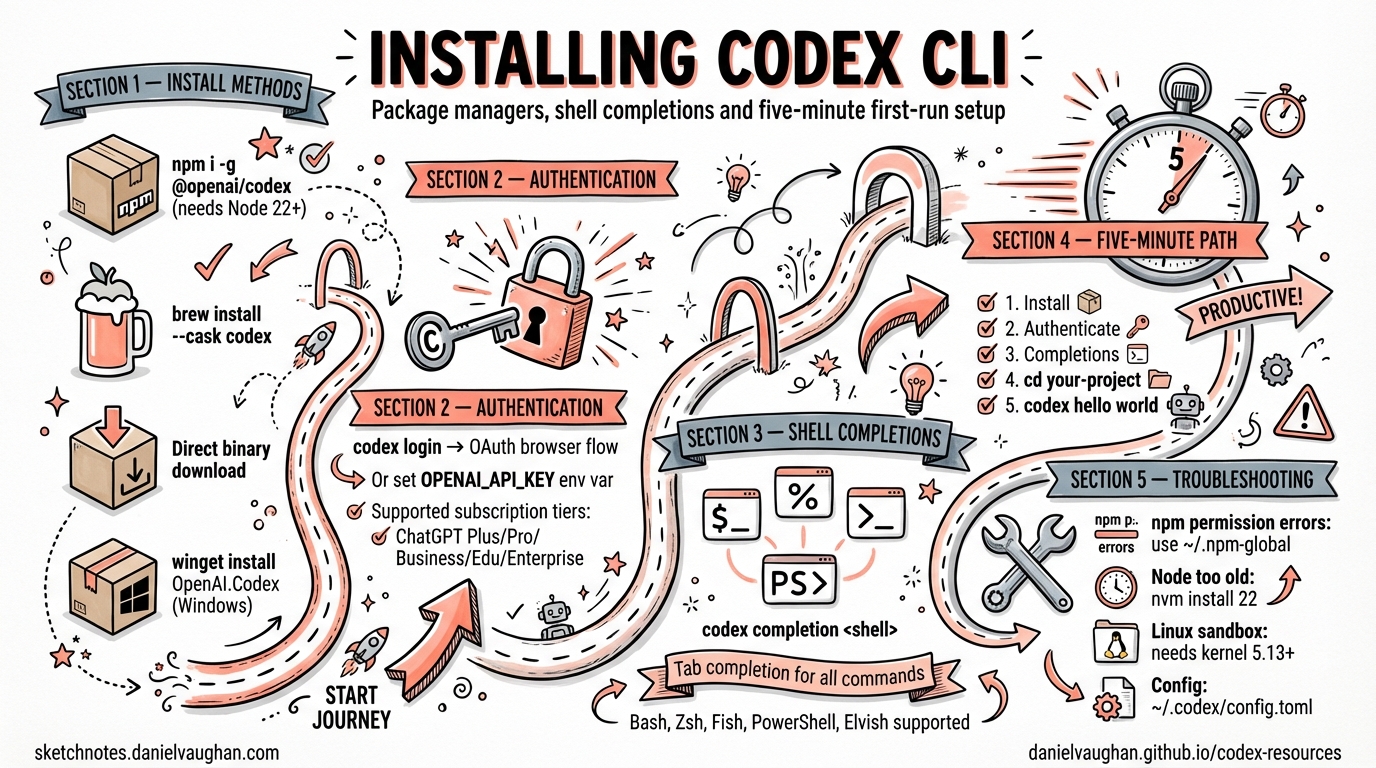
Getting Codex CLI running on your machine takes under five minutes — but the installation path you choose and the post-install configuration you apply can meaningfully affect your day-to-day experience. This guide covers every supported installation method, shell completion setup for all five supported shells, first-run authentication, and common troubleshooting patterns.
System Requirements
Codex CLI is a standalone Rust binary distributed via multiple channels. The core requirements are minimal:
| Requirement | Detail |
|---|---|
| Operating System | macOS (Intel or Apple Silicon), Linux (x86_64 or arm64), Windows (experimental) [^1] |
| Node.js | v22 or later (for npm installation only) 1 |
| Network | HTTPS outbound to api.openai.com for authentication and model calls |
| ChatGPT Plan | Plus, Pro, Business, Edu, or Enterprise — or an OpenAI API key [^3] |
Windows support remains experimental as of early 2026. OpenAI recommends running Codex inside a WSL workspace for the most stable Windows experience [^1].
Installation Methods
npm (Cross-Platform)
The canonical installation path uses npm. This requires Node.js 22+ 1:
npm install -g @openai/codex
To upgrade an existing installation:
npm install -g @openai/codex@latest
The npm package is published under the @openai/codex scope 2. At time of writing the latest stable release series is v0.119.x 3.
Homebrew (macOS and Linux)
Homebrew users can install via cask 4:
brew install --cask codex
This installs the pre-built binary directly — no Node.js dependency required. Homebrew handles updates through the standard brew upgrade mechanism.
Direct Binary Download (All Platforms)
Pre-built binaries are available from the GitHub releases page for environments where neither npm nor Homebrew is appropriate 4:
| Platform | Binary |
|---|---|
| macOS Apple Silicon | codex-aarch64-apple-darwin.tar.gz |
| macOS Intel | codex-x86_64-apple-darwin.tar.gz |
| Linux x86_64 | codex-x86_64-unknown-linux-musl.tar.gz |
| Linux arm64 | codex-aarch64-unknown-linux-musl.tar.gz |
After extraction, rename the platform-specific binary to codex and place it somewhere on your PATH:
tar xzf codex-aarch64-apple-darwin.tar.gz
mv codex-aarch64-apple-darwin /usr/local/bin/codex
chmod +x /usr/local/bin/codex
winget (Windows)
Windows users can install Codex CLI through winget [^7]:
winget install OpenAI.Codex
⚠️ The winget package is community-maintained. For the most reliable Windows experience, OpenAI recommends using npm inside WSL2 [^1].
Verifying the Installation
Confirm everything is working:
codex --version
You should see output like codex 0.119.0 (or your installed version). If the command is not found, ensure the installation directory is on your PATH.
First-Run Authentication
The first time you launch codex, you are prompted to authenticate [^3]. Two paths are available:
flowchart TD
    A[codex launched] --> B{First run?}
    B -->|Yes| C[Authentication prompt]
    C --> D{Choose method}
    D -->|ChatGPT account| E[codex login — OAuth browser flow]
    D -->|API key| F[Enter OPENAI_API_KEY]
    E --> G[Session authenticated]
    F --> G
    B -->|No| G
    G --> H[Ready to use]
ChatGPT Account (Recommended)
Select “Sign in with ChatGPT” when prompted. This opens an OAuth flow in your browser and links your ChatGPT subscription (Plus, Pro, Business, Edu, or Enterprise) to the CLI [^3]. This method unlocks the full feature set including cloud threads.
You can also trigger this explicitly:
codex login
API Key
For CI environments or users without a ChatGPT subscription, set the OPENAI_API_KEY environment variable:
export OPENAI_API_KEY="sk-..."
Or pass it via the login flow when prompted. Note that some features — notably cloud tasks — require ChatGPT account authentication rather than a bare API key [^8].
Shell Completions
Codex CLI ships with built-in completion generation for five shells [^9]:
codex completion <SHELL>
Where <SHELL> is one of: bash, zsh, fish, powershell, or elvish.
The command writes the completion script to stdout. You pipe it to the appropriate location for your shell.
Bash
codex completion bash > /etc/bash_completion.d/codex
Or for a per-user setup:
mkdir -p ~/.local/share/bash-completion/completions
codex completion bash > ~/.local/share/bash-completion/completions/codex
Zsh
codex completion zsh > "${fpath[1]}/_codex"
If you prefer a custom completions directory:
mkdir -p ~/.zsh/completions
codex completion zsh > ~/.zsh/completions/_codex
Then add to ~/.zshrc before compinit:
fpath=(~/.zsh/completions $fpath)
autoload -Uz compinit
compinit
If you encounter a command not found: compdef error, ensure autoload -Uz compinit && compinit appears in your ~/.zshrc before any completion-related lines 5.
Fish
codex completion fish > ~/.config/fish/completions/codex.fish
Fish picks up completion files from this directory automatically — no additional configuration needed.
PowerShell
codex completion powershell | Out-File -Encoding utf8 -FilePath "$HOME\Documents\PowerShell\Completions\codex.ps1"
Then add to your PowerShell profile ($PROFILE):
. "$HOME\Documents\PowerShell\Completions\codex.ps1"
Elvish
codex completion elvish > ~/.config/elvish/lib/codex.elv
Then in ~/.config/elvish/rc.elv:
use codex
The Five-Minute Onboarding Path
For developers who want to go from zero to productive as quickly as possible:
flowchart LR
    A["1. Install<br/>npm i -g @openai/codex"] --> B["2. Authenticate<br/>codex login"]
    B --> C["3. Completions<br/>codex completion zsh > ..."]
    C --> D["4. Navigate<br/>cd your-project"]
    D --> E["5. First task<br/>codex 'tell me about this project'"]
- Install — pick the method that suits your platform
- Authenticate — run
codex loginor justcodexand follow the prompt - Shell completions — set up tab-completion for your shell (optional but recommended)
- Navigate —
cdinto a Git repository - First task — ask Codex something about your project
Codex operates within your current working directory context. It is strongly recommended to create a Git checkpoint before your first real task, as Codex can modify your codebase [^8].
Common Installation Issues
npm install Fails with Permission Errors
Avoid sudo npm install -g. Instead, configure npm to use a user-owned directory:
mkdir -p ~/.npm-global
npm config set prefix '~/.npm-global'
echo 'export PATH="$HOME/.npm-global/bin:$PATH"' >> ~/.bashrc
source ~/.bashrc
Node.js Version Too Old
Codex CLI requires Node.js 22+ when installing via npm 1. Use a version manager like nvm or fnm:
nvm install 22
nvm use 22
npm install -g @openai/codex
Binary Not Found After Homebrew Install
If brew install --cask codex completes but codex is not found, check that /opt/homebrew/bin (Apple Silicon) or /usr/local/bin (Intel) is on your PATH.
Sandbox Verification Fails on Linux
Codex uses Landlock LSM for sandboxing on Linux, which requires kernel 5.13+ 6. Verify with:
codex sandbox --test
If sandboxing is unavailable, Codex will warn you and fall back to unrestricted execution.
Post-Install Configuration
Once installed, Codex reads configuration from ~/.codex/config.toml (user level) and .codex/config.toml (project level) [^12]. A minimal starting configuration:
# ~/.codex/config.toml
model = "o4-mini"
approval = "on-request"
You can override any config value at invocation time with -c:
codex -c model=o3 "refactor this module"
For a full configuration reference, see the Codex config documentation [^12].
Citations
| [^1]: [CLI – Codex | OpenAI Developers](https://developers.openai.com/codex/cli) — Official CLI page noting macOS/Linux support and experimental Windows status with WSL recommendation. |
| [^3]: [Quickstart – Codex | OpenAI Developers](https://developers.openai.com/codex/quickstart) — Official quickstart covering authentication methods and plan eligibility. |
| [^7]: [Install Codex CLI with WinGet | winstall](https://winstall.app/apps/OpenAI.Codex) — winget package listing for OpenAI Codex CLI. |
| [^8]: [Quickstart – Codex | OpenAI Developers](https://developers.openai.com/codex/quickstart) — Quickstart guide noting cloud thread limitations with API key auth and Git checkpoint recommendation. |
| [^9]: [Command line options – Codex CLI | OpenAI Developers](https://developers.openai.com/codex/cli/reference) — CLI reference documenting the codex completion subcommand for bash, zsh, fish, powershell, and elvish. |
| [^12]: [Config basics – Codex | OpenAI Developers](https://developers.openai.com/codex/config-basic) — Official configuration documentation covering config.toml locations and keys. |
-
relax node 22 or newer requirement · Issue #164 · openai/codex — GitHub issue confirming Node.js 22+ requirement for npm installation. ↩ ↩2 ↩3
-
@openai/codex – npm — npm package page for the official Codex CLI package. ↩
-
openai/codex Releases – GitHub — GitHub releases page showing v0.119.x as the latest release series (April 2026). ↩
-
openai/codex – GitHub — Repository README with Homebrew cask and binary download instructions. ↩ ↩2
-
How to generate Codex shell completions – Simplified Guide — Community guide covering zsh compdef troubleshooting. ↩
-
Codex CLI Sandbox Platform Implementation — Daniel Vaughan’s article on Landlock LSM requirements for Linux sandboxing. ↩