Codex App Computer Use: Background GUI Automation on macOS Without Surrendering Your Desktop
Codex App Computer Use: Background GUI Automation on macOS Without Surrendering Your Desktop
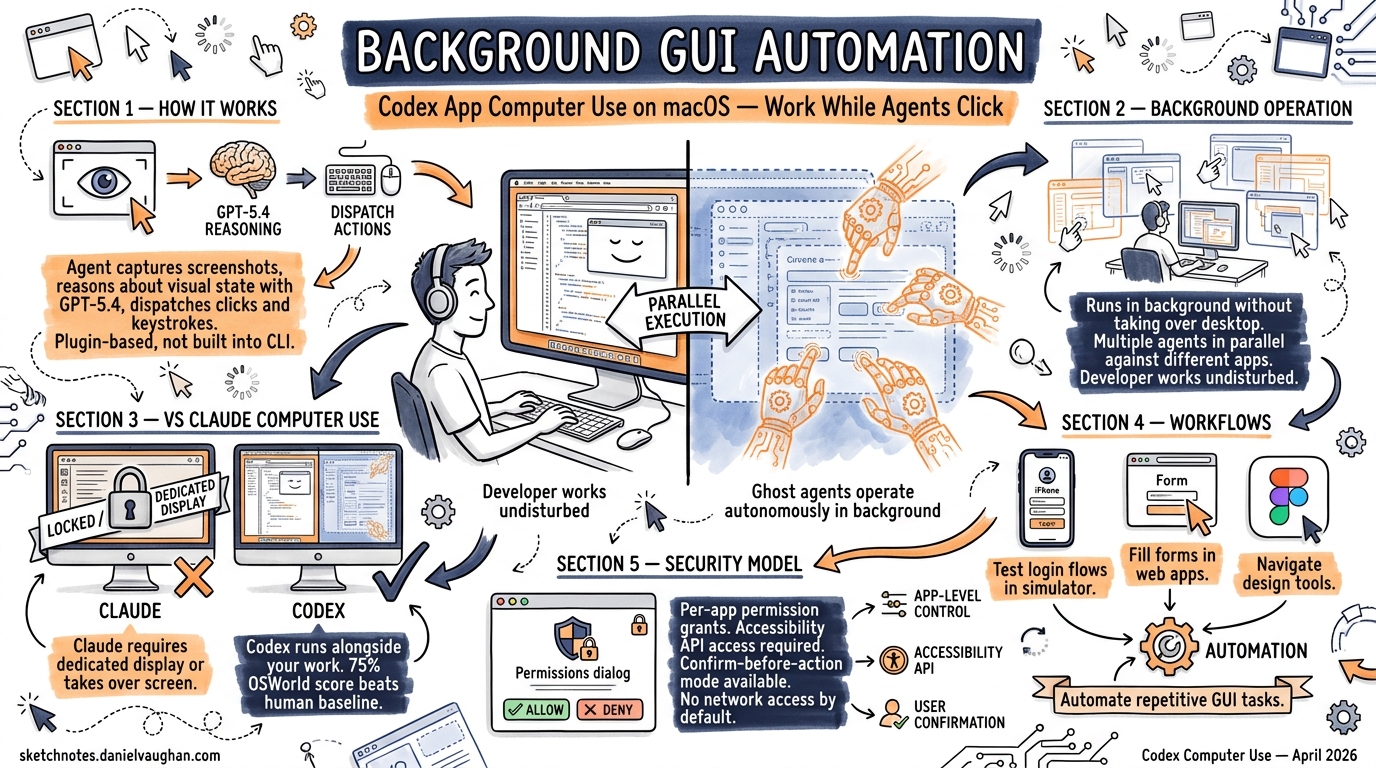
On 16 April 2026, OpenAI shipped Computer Use in the Codex desktop app (version 26.415), enabling agents to operate macOS applications by seeing the screen, clicking, and typing with their own cursor — all running in the background without commandeering the user’s desktop 12. This is a fundamentally different proposition from both Anthropic’s Claude Computer Use API (research preview since March 2026) and traditional GUI automation frameworks like Selenium or Accessibility Inspector scripts. Where Claude’s implementation requires a dedicated virtual display or takes over the user’s screen, Codex runs multiple agents in parallel against different applications whilst the developer continues working undisturbed 3.
This article dissects the architecture, security model, practical workflows, and limitations of Codex App Computer Use for senior developers evaluating whether it belongs in their toolkit.
How Computer Use Works
Computer Use operates as a plugin within the Codex desktop app, not as a built-in CLI feature 4. The agent captures screenshots of target application windows, reasons about the visual state using GPT-5.4’s computer use capabilities (75% on OSWorld, surpassing the 72.4% human baseline) 5, and dispatches mouse clicks, keyboard input, and clipboard operations to achieve the requested goal.
sequenceDiagram
    participant User as Developer
    participant Codex as Codex App
    participant CU as Computer Use Plugin
    participant App as Target macOS App

    User->>Codex: "Test the login flow in our iOS simulator"
    Codex->>CU: Activate Computer Use
    CU->>App: Screenshot capture
    App-->>CU: Current visual state
    CU->>Codex: Reason about next action
    Codex-->>User: Request app permission (first use)
    User->>Codex: Always allow
    CU->>App: Click, type, navigate
    CU->>App: Screenshot capture (verify result)
    CU-->>Codex: Task complete with observations
    Codex-->>User: Summary of findings
The key architectural choice is background cursor isolation. Each Codex agent thread gets its own cursor context, separate from the user’s active cursor. This means you can continue writing code in your editor whilst an agent operates Safari, Xcode, or Figma in a different window 3.
Installation and Permissions
Computer Use requires two macOS system-level permissions 4:
- Screen Recording — allows the plugin to capture application window contents
- Accessibility — enables click, type, and window navigation operations
Installation is straightforward:
- Open Settings → Plugins in the Codex app
- Install the Computer Use plugin
- Grant permissions when macOS prompts (verifiable in System Settings → Privacy & Security)
Beyond system permissions, Computer Use implements an app-level approval system. The first time Codex attempts to interact with any application, it requests explicit permission 4. You can select “Always allow” for trusted applications, creating a per-app allowlist managed in Codex settings.
flowchart TD
    A[Agent requests app access] --> B{System permissions granted?}
    B -->|No| C[macOS permission prompt]
    B -->|Yes| D{App previously approved?}
    D -->|No| E[Codex app-level approval prompt]
    D -->|Yes| F[Proceed with operation]
    E -->|Always allow| F
    E -->|Allow once| F
    E -->|Deny| G[Operation blocked]
    C -->|Granted| D
    C -->|Denied| G
Invocation Patterns
There are three ways to trigger Computer Use within a Codex thread 6:
| Pattern | Example | When to Use |
|---|---|---|
@Computer Use mention |
“Using @Computer Use, check the layout in Safari” | Explicit invocation when multiple tools could apply |
| App name mention | “@Chrome navigate to localhost:3000” | When a dedicated plugin doesn’t exist for the app |
| Implicit reference | “Test the login flow in the simulator” | Codex infers Computer Use is needed from context |
An important routing rule: if a dedicated plugin exists for the target application, Codex will prefer the plugin over Computer Use 6. This means @Slack routes to the Slack plugin (structured API access) rather than visually operating the Slack window. Computer Use acts as the fallback for applications without plugin coverage — which, despite the 111 new plugins shipped with 26.415 2, still represents the vast majority of desktop software.
Background Parallel Execution
The headline capability is running multiple Computer Use agents simultaneously without disrupting the developer’s workflow 3. Each agent operates on its own window context:
graph LR
    subgraph "Developer's Active Work"
        A[VS Code - editing code]
    end
    subgraph "Agent Thread 1"
        B[Safari - testing frontend]
    end
    subgraph "Agent Thread 2"
        C[Xcode Simulator - iOS testing]
    end
    subgraph "Agent Thread 3"
        D[Figma - extracting design tokens]
    end

    A -.->|"No interference"| B
    A -.->|"No interference"| C
    A -.->|"No interference"| D
There is, however, a critical constraint: do not run two Computer Use tasks against the same application simultaneously 6. The visual context becomes unstable when two agents compete for the same window, leading to action conflicts and incorrect state reasoning.
Security Model
Computer Use introduces a unique security surface that sits outside Codex’s existing sandbox model:
What the Sandbox Covers
File edits and shell commands executed during a Computer Use session still respect the standard Codex approval and sandbox settings 4. If your sandbox is configured for workspace-write, the agent cannot modify files outside the project directory even when triggered through a GUI workflow.
What the Sandbox Does Not Cover
GUI operations themselves — clicking buttons, entering text, navigating menus — happen through macOS Accessibility APIs and are not governed by the file-system sandbox 4. A Computer Use agent interacting with a web browser inherits whatever authentication state that browser has. If you are signed into your production AWS console in Chrome, the agent can see and interact with it.
Hard Restrictions
The plugin enforces four non-negotiable restrictions 4:
- Cannot automate terminal applications — prevents recursive self-invocation and sandbox bypass
- Cannot control Codex itself — blocks agents from approving their own operations
- Cannot authenticate as administrator — no sudo-equivalent GUI escalation
- Cannot approve macOS security prompts — system-level dialogs remain human-gated
Practical Security Guidance
OpenAI’s official documentation recommends 4:
- Keep tasks narrowly scoped — avoid broad “do whatever is needed” prompts
- Stay present during sensitive operations — Computer Use is not designed for unattended credential-touching workflows
- Avoid concurrent secrets exposure — do not have password managers visible while agents are operating
- Treat browser interactions as account-level actions — the agent acts with your logged-in identity
⚠️ There is currently no way to configure a separate browser profile or sandboxed browser instance for Computer Use. The agent operates against whatever browser state is visible, which creates a meaningful risk surface for authenticated services.
The In-App Browser Alternative
Shipped alongside Computer Use, the Codex in-app browser (powered by Atlas) offers a more controlled alternative for web-based workflows 7. It supports previewing localhost development servers and public pages, with the ability to place comments directly on rendered elements for the agent to address.
Critically, the in-app browser does not support 7:
- Authentication flows
- Signed-in pages
- Browser profiles, cookies, or extensions
- Existing browser tabs
This makes it safer for frontend iteration — no risk of the agent encountering your production credentials — but useless for workflows requiring authenticated state.
| Capability | Computer Use (via Browser) | In-App Browser (Atlas) |
|---|---|---|
| Authenticated pages | ✅ Uses existing session | ❌ No auth support |
| localhost preview | ✅ | ✅ |
| Element-level comments | ❌ | ✅ |
| Production risk | Higher | Minimal |
| Plugin/MCP integration | ❌ Visual only | ❌ Visual only |
For frontend development loops, the in-app browser is the safer choice. For testing authenticated flows or interacting with desktop applications, Computer Use is the only option.
Codex vs Claude: Computer Use Compared
Anthropic shipped Claude Computer Use as a research preview on 23 March 2026, with Claude Opus 4.7 (released 16 April 2026) achieving 98.5% visual acuity 89. The two implementations differ architecturally:
| Aspect | Codex Computer Use | Claude Computer Use |
|---|---|---|
| Delivery | Desktop app plugin | API (beta tool) |
| Execution | Background, multi-agent | Takes over display or requires virtual display |
| Model | GPT-5.4 (75% OSWorld) 5 | Opus 4.7 (98.5% visual acuity) 9 |
| Platform | macOS only | Platform-agnostic (API-driven) |
| Auth model | App-level permission prompts | Developer-managed containers |
| Parallel agents | ✅ Multiple agents, separate cursors | Requires separate virtual displays |
| CLI integration | Desktop app only (no codex exec) |
Via API + SDK |
| Regional availability | Not in EEA/UK/Switzerland 4 | Generally available |
Claude’s API-driven approach gives developers more control — you can run it in a Docker container with a virtual framebuffer, isolating it from your real desktop entirely. Codex’s approach trades that isolation for convenience: no container setup, no virtual displays, just grant permissions and go.
⚠️ The regional restriction is significant. Developers in the EU, UK, and Switzerland cannot use Codex Computer Use at launch, whilst Claude Computer Use has no such restriction 4.
Practical Workflow: iOS Simulator Testing
A concrete example combining Computer Use with standard Codex capabilities:
- Thread setup: Open a project thread for your iOS app
- Build: Ask Codex to build and launch the app in the iOS Simulator (standard shell command)
- Visual testing: “Using @Computer Use, navigate through the onboarding flow in the iOS Simulator and report any layout issues on smaller screen sizes”
- Fix: Codex identifies a truncated label on iPhone SE, edits the SwiftUI view (standard file edit with sandbox approval)
- Verify: “Check the fix in the simulator” — Computer Use re-launches and verifies
This workflow mixes shell commands (governed by sandbox), file edits (governed by approval mode), and GUI operations (governed by Computer Use permissions) in a single thread. The sandbox and approval settings remain enforced for steps 2 and 4; only step 3 and 5 operate through the Computer Use permission layer.
Thread Automations and Computer Use
With thread automations (also shipped in 26.415), Computer Use workflows can be scheduled 7. A thread automation preserves the full conversation context across scheduled runs. Combined with Computer Use, this enables patterns like:
- Nightly visual regression: Schedule a thread to launch the development server, navigate key pages via Computer Use, and screenshot the results for comparison
- Periodic monitoring: Wake a thread every hour to check a dashboard application for anomalies
- Cross-day testing: Resume a testing thread the next morning, with the agent already aware of yesterday’s findings
⚠️ Automated Computer Use tasks require the Mac to remain unlocked and the target applications to remain accessible. If the Mac locks during a scheduled automation, the Computer Use operation fails silently 6.
Community Reaction: “Absolutely Insane”
Within 48 hours of launch, the developer community response to Computer Use has been overwhelmingly positive — and instructive about what resonates.
Why Developers Are Excited
Federico Viticci at MacStories tested Computer Use extensively and called it “the best computer use feature I have ever tested in any LLM or desktop agent” 10. His test was revealing: when asked to play music in the Music app, Perplexity’s Personal Computer failed (“stopped short of hitting the Play button because its AppleScript integration couldn’t do it”), while Codex succeeded using its virtual cursor system. He also reported Codex automating a six-hour shortcut installation/testing/debugging workflow without manual intervention.
Alexander Embiricos (OpenAI) described the technical basis: “Background Computer Use…has some deep OS-level wizardry. Codex can see/click/type in apps in the background, without taking over your computer, and you can work in parallel” 11.
The AX Tree Advantage
The architectural reason Codex’s implementation outperforms competitors runs deeper than the background cursor. While Claude Computer Use and Perplexity Personal Computer rely on screenshot capture and coordinate-based clicking — essentially screen-scraping the GUI — Codex leverages macOS’s Accessibility framework (AX Tree) to read the full structural hierarchy of application windows 10. This gives the agent semantic understanding of UI elements (buttons, text fields, menus, labels) rather than inferring them from pixel patterns.
This technology traces back to OpenAI’s acquisition of Sky Applications in autumn 2025 — the team behind the original Shortcuts/Workflow app at Apple 12. That acquisition brought deep expertise in macOS system-level integration and accessibility APIs, which is now directly visible in Computer Use’s implementation quality.
Reddit Sentiment (r/codex)
The r/codex community’s reaction to the Computer Use update was captured in a post titled “The updated Computer Use is absolutely insane” 13. A broader analysis of 500+ Reddit comments across Codex threads (compiled by DEV Community) found 14:
- 65.3% direct preference for Codex over Claude Code
- 79.9% preference when weighted by upvotes
- 68% of developers cited higher first-try success rates
Representative comments: “Throw work at it, it disappears into its own VM, comes back with a PR” and “Usually gets it right on the first try. Weeks using Codex and I rarely need to ask twice.”
Cautionary Voices
Not everyone is convinced. MacRumors forum users called it “the worst idea ever” and questioned AI control over personal computers 15. On Reddit, practical concerns surfaced: “Give the CLI full autonomy and it rewrites massive amounts of code. Hard to track” and “Suggests too many extra tasks. Send one ticket, it handles half then asks ‘Should I also do X?’” These echo the cognitive load concerns documented in the toxic flow research.
Emerging Use Cases
Beyond the testing workflows covered earlier in this article, the community has reported success with:
- Multi-app information gathering — scrolling through Slack, RSS readers, and Mastodon clients to compile summaries
- Frontend visual testing — verifying UI changes across browsers and simulators in parallel
- GUI-only bug reproduction — for defects that only manifest in graphical interfaces and cannot be triggered via CLI
- Desktop app testing — applications with no API or CLI access
- Multi-day autonomous tasks — using thread automations to schedule Computer Use operations across days, monitoring dashboards and responding to Slack messages
Known Limitations
- macOS only — no Windows or Linux support at launch 4
- No EEA/UK/Switzerland availability — regulatory constraints 4
- No CLI integration — Computer Use is a desktop app plugin;
codex execcannot trigger it 4 - No browser profile isolation — agents use whatever browser state is visible 4
- No same-app parallelism — two agents cannot operate the same application concurrently 6
- Mac must remain unlocked — screen lock terminates Computer Use operations 6
- Desktop app changes are opaque — GUI modifications do not appear in the Codex review pane until saved to disk 4
- No terminal automation — by design, to prevent sandbox bypass 4
When to Use Computer Use (and When Not To)
flowchart TD
    A[Task requires app interaction] --> B{Plugin or MCP server exists?}
    B -->|Yes| C[Use the plugin - structured, faster, safer]
    B -->|No| D{Task involves authenticated services?}
    D -->|Yes| E{Can you scope credentials tightly?}
    E -->|Yes| F[Computer Use with caution]
    E -->|No| G[Manual operation preferred]
    D -->|No| H{Frontend/localhost testing?}
    H -->|Yes| I{Need auth state?}
    I -->|Yes| F
    I -->|No| J[Use in-app browser instead]
    H -->|No| F
The decision hierarchy from OpenAI’s own documentation is clear: plugins and MCP servers first, Computer Use as a fallback for GUI-only workflows 4. Senior developers should resist the temptation to use Computer Use for everything — it is slower, less reliable, and harder to reproduce than structured API or CLI interactions.
Citations
-
OpenAI (@OpenAI) on X, 16 April 2026 — “With computer use on macOS, Codex can now use any app by seeing, clicking, and typing with its own cursor.” ↩
-
9to5Mac — “OpenAI’s Codex app adds three key features for expanding beyond agentic coding”, 16 April 2026 ↩ ↩2
-
The Decoder — “OpenAI turns Codex into an always-on coding agent that watches your screen”, April 2026 ↩ ↩2 ↩3
-
OpenAI Developers — “Computer Use – Codex app” ↩ ↩2 ↩3 ↩4 ↩5 ↩6 ↩7 ↩8 ↩9 ↩10 ↩11 ↩12 ↩13 ↩14 ↩15 ↩16
-
OpenAI — GPT-5.4 benchmarks; OSWorld 75% surpassing human 72.4% baseline ⚠️ Benchmark figure from existing article #137; primary source may have been updated ↩ ↩2
-
OpenAI Developers — “Use your computer with Codex” use case guide ↩ ↩2 ↩3 ↩4 ↩5 ↩6
-
Anthropic — Claude Computer Use research preview, March 2026 ↩
-
GitHub Changelog — “Claude Opus 4.7 is generally available”, 16 April 2026 — 98.5% visual acuity for computer use ↩ ↩2
-
MacStories — “OpenAI’s New Codex App Has the Best Computer Use Feature I’ve Ever Tested”, April 2026 ↩ ↩2
-
Alexander Embiricos (OpenAI) on X, April 2026 — “Background Computer Use…has some deep OS-level wizardry” ↩
-
OpenAI acquisition of Sky Applications (formerly Workflow/Shortcuts team), autumn 2025 — referenced in “Codex for (almost) everything” blog post ↩
-
Reddit r/codex — “The updated Computer Use is absolutely insane”, April 2026 ↩
-
DEV Community — “Claude Code vs Codex 2026 — What 500+ Reddit Developers Really Think”, April 2026 ↩
-
MacRumors — “OpenAI Codex Update Adds Computer Use, Image Generation, and Memory on Mac”, April 2026 — forum comments ↩