Codex Computer Use and Locked Mac Remote Desktop: How CUA Turns Codex into a GUI Agent
Codex Computer Use and Locked Mac Remote Desktop: How CUA Turns Codex into a GUI Agent
Published: 2026-05-22 Sources: OpenAI Computer Use docs, OpenAI Use Cases, OpenAI Changelog v26.519, TestingCatalog coverage, Knightli enterprise access tokens, MacRumors mobile launch
What is Computer Use?
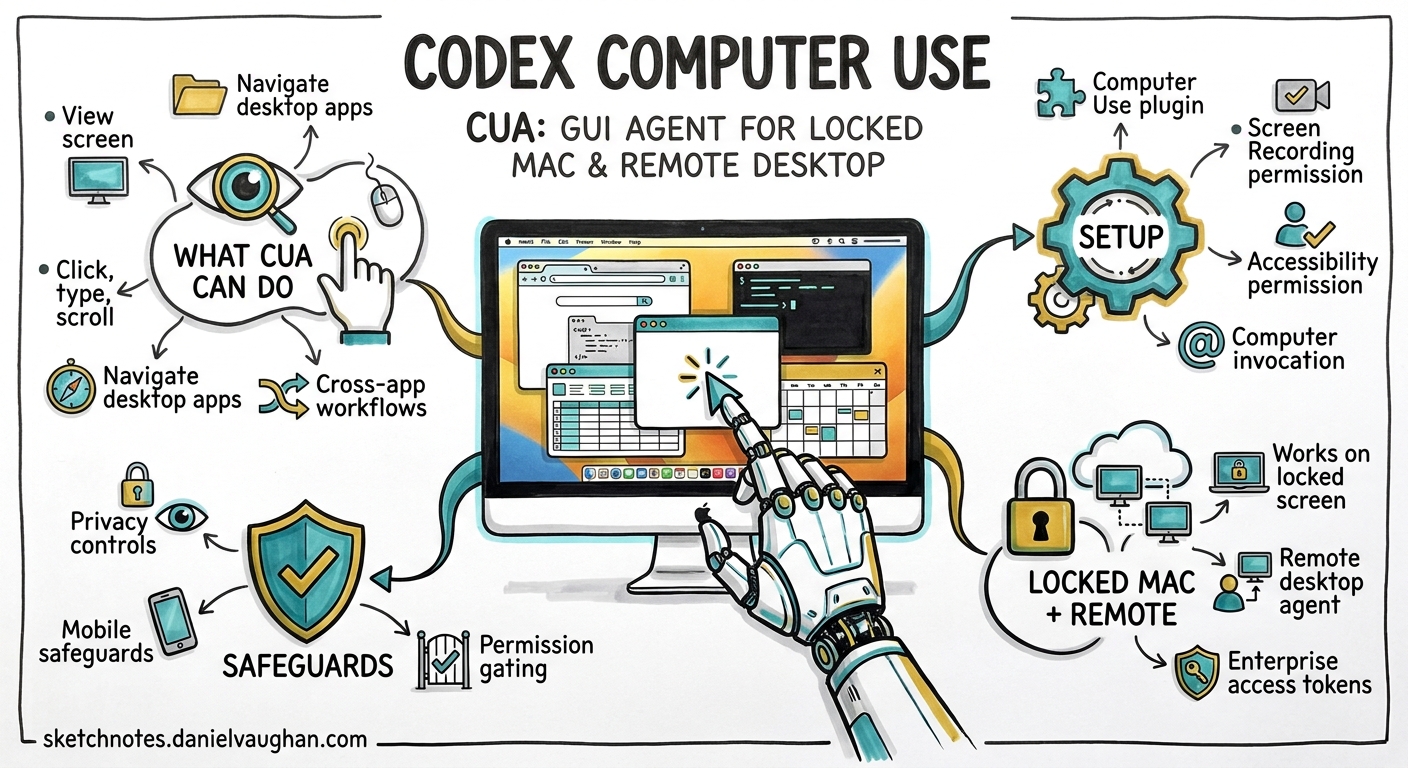
Computer Use (CUA — Computer Use Agent) lets Codex see and operate graphical user interfaces on macOS. Rather than being limited to terminal commands and file edits, Codex can click, type, scroll, and navigate desktop applications the same way a human would.
This matters for agentic workflows because many real-world tasks span multiple applications — copying data from Slack to a spreadsheet, testing a GUI build, reproducing a visual bug in a simulator, or interacting with tools that have no CLI or API.
Setup
- Install the Computer Use plugin via Codex settings
- Grant Screen Recording permission (so Codex can see the screen)
- Grant Accessibility permission (so Codex can interact with windows, menus, and keyboard)
- Invoke with
@Computeror mention a specific app (@Slack,@Figma,@Xcode)
What CUA Can Do
- View screen content and take screenshots for context
- Click, type, and scroll in any macOS application window
- Manage clipboard state — copy/paste across apps
- Navigate menus and interact with native UI controls
- Test macOS apps and iOS simulators — reproduce bugs visually
- Multi-app workflows — move data between apps without dedicated plugins
- Run in the background while you continue working in other apps
Locked Mac Computer Use (May 2026)
The most significant addition is locked computer use: Codex can continue operating desktop apps after your Mac’s screen locks. This was announced in the Codex Changelog on 21 May 2026 and requires explicit user opt-in.
How It Works
When locked computer use is enabled, Codex temporarily unlocks the Mac while blocking local use and preserving locked-screen protections. Before acting, Codex verifies that the unlock attempt is for an active, trusted computer use turn.
Three Core Safeguards
| Safeguard | What it does |
|---|---|
| Time-limited authorisation | The unlock window is scoped to the current turn only — no persistent background access |
| Display coverage | While the desktop is temporarily unlocked for the agent, the display is covered so a passerby cannot see sensitive content |
| Automatic relock | If local keyboard or pointer input is detected, the Mac immediately relocks and CUA pauses |
Configuration
Users can manage locked computer use in Codex settings:
- Enable/disable locked use globally
- Always allow list — whitelist trusted applications for unattended CUA
- Remove apps from automatic approval at any time
Why It Matters for Agentic Workflows
Locked computer use enables truly asynchronous agent work:
- Overnight CI/GUI testing — kick off a /goal session that includes visual testing of a desktop app, then lock your Mac and go to sleep
- Mobile-directed GUI tasks — use Codex Mobile (ChatGPT app) to direct the agent to open a desktop app, test a build, or hit a simulator on your locked office Mac
- Multi-device orchestration — OpenAI is exploring connecting multiple Macs (e.g. Mac Minis as headless agent runners) controlled remotely from a primary device
Codex Mobile + Remote Computer Use
Since 14 May 2026, Codex sessions can be controlled from the ChatGPT mobile app (iOS and Android). Combined with locked computer use, this creates a powerful remote workflow:
- Lock your Mac and leave the office
- From your phone, start a new Codex task that requires desktop interaction
- Codex unlocks the Mac (covered display), performs the GUI task, and relocks
- Review results, approve actions, and steer execution — all from mobile
Enterprise workspaces can use access tokens to gate mobile remote access, ensuring only authorised team members can trigger computer use on shared machines.
Limitations
| Limitation | Detail |
|---|---|
| No terminal automation | CUA cannot automate Terminal.app or Codex itself (prevents security bypass loops) |
| No admin authentication | Cannot enter admin credentials or approve system permission prompts |
| No EEA/UK/Switzerland | Not available at launch in the European Economic Area, UK, or Switzerland |
| No parallel CUA | Cannot run two Computer Use tasks in the same application simultaneously |
| Session scoped | Locked use only works for active, trusted computer use turns — not for arbitrary background access |
Practical Patterns
1. Bug Reproduction with Screenshots
@Computer Open the Expenses app, navigate to the Reports tab,
and show me what happens when I click Export with no date range selected.
Screenshot the error state.
2. Cross-App Data Collection
@Slack Copy the last 5 messages from #deploys.
@Notion Paste them into the Deploy Log page under today's date.
3. iOS Simulator Testing (Locked Mac)
/goal Test the latest build in the iOS 19 simulator.
Launch the app, navigate through the onboarding flow,
and screenshot any layout issues. Run overnight.
4. Design-to-Code with Figma
@Figma Open the Dashboard Redesign file.
Screenshot the "Metrics Panel" component.
Then implement it as a React component matching the layout and spacing.
Security Best Practices
- Keep tasks narrow — avoid open-ended CUA instructions on sensitive machines
- Stay present for sensitive operations — payments, credentials, account settings
- Review the always-allow list regularly — remove apps you no longer need automated
- Use enterprise access tokens for shared/headless machines
- Pre-authenticate apps — sign in before starting CUA tasks to avoid credential exposure
Relationship to CLI
Computer Use is a Codex App (macOS desktop) feature, not a Codex CLI feature. However, CLI users benefit from the broader CUA ecosystem through:
- Appshots (May 21) — press both Command keys to send a screenshot of the frontmost app to Codex CLI, bridging visual context into terminal workflows
codex remote-control(v0.130) — headless app-server mode that pairs with mobile remote access- Subagent orchestration — CLI subagents can spawn App tasks that use CUA, while the CLI handles code-level work
What This Means for Enterprise
Locked computer use and mobile remote access represent a shift from “developer tool” to “autonomous desktop agent”. For enterprise teams exploring Codex:
- Headless Mac Mini farms as agent runners become viable for CI/CD with GUI testing
- On-call workflows where agents can perform visual checks on locked machines during off-hours
- Compliance testing that requires interacting with web-based portals without CLI access
- MDM policies need updating to account for the Screen Recording and Accessibility permissions CUA requires
The combination of /goal mode (long-running agent loops), locked computer use, and mobile remote access creates a credible path toward 24/7 autonomous agent operation — the direction Daniel’s agentic pod work is heading.