Figma MCP + Codex CLI: Turning Designs into Code That Fits Your Codebase
Figma MCP + Codex CLI: Turning Designs into Code That Fits Your Codebase
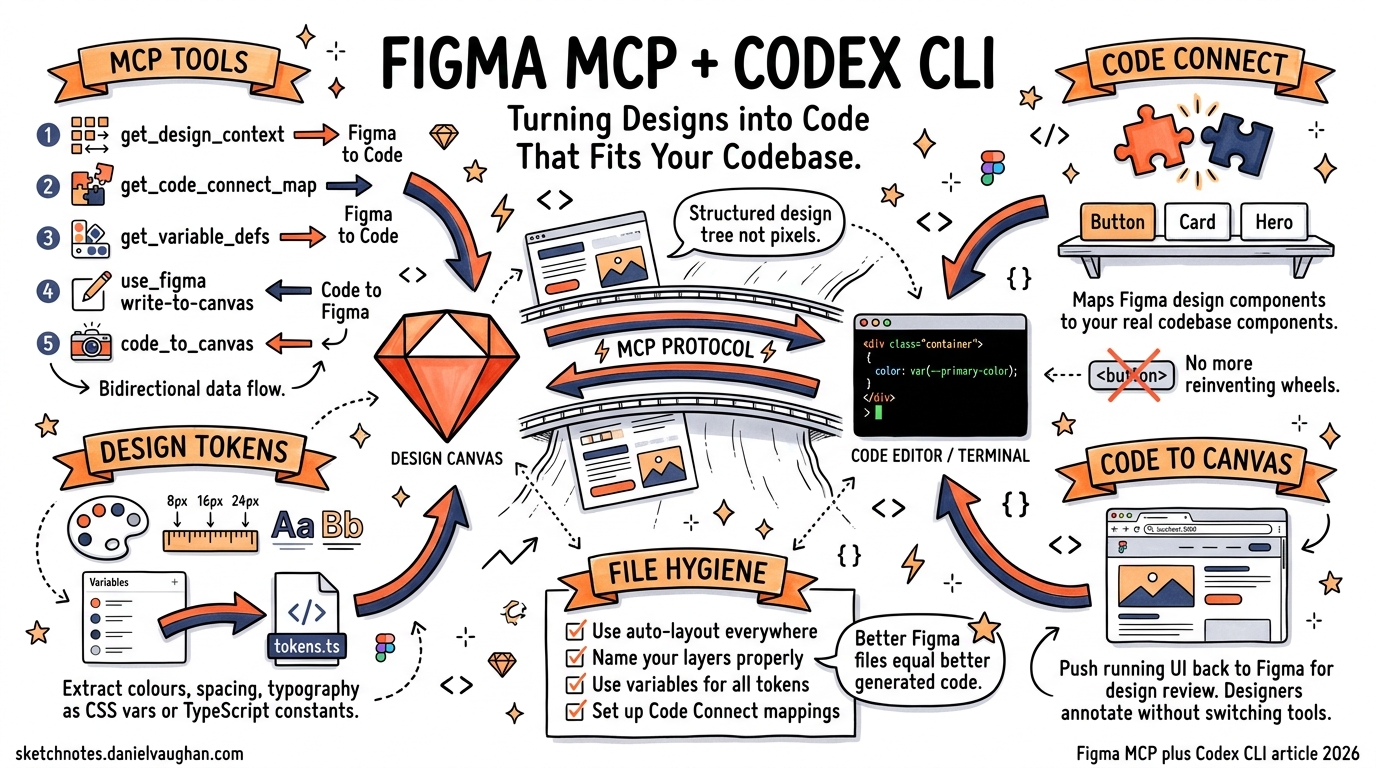
Figma launched its official MCP server in late 2025 and expanded it with bidirectional capabilities — including the Codex partnership announced on February 25, 2026. The integration gives Codex CLI direct access to Figma’s structured design data: layouts, variables, component mappings, and even the ability to push code back onto the canvas. This is not a screenshot-and-guess workflow. The MCP server sends the actual design tree — hierarchy, auto-layout rules, variable references, Code Connect mappings — so the model generates code against real constraints rather than pixel approximations.
This article covers how to wire Figma MCP into Codex CLI, the tools it exposes, practical workflows for design-to-code and token extraction, and the current limitations you will hit.
What the Figma MCP Server Actually Provides
The Figma MCP server exposes several tools over the Model Context Protocol. The ones that matter most for Codex CLI workflows:
| Tool | Direction | What it does |
|---|---|---|
get_design_context |
Figma → Code | Returns structured layout data for a selected node — hierarchy, auto-layout, styles, component properties, and image references. Default output targets React + Tailwind, but responds to prompt-level overrides. |
get_code_connect_map |
Figma → Code | Maps selected Figma instance nodes to their corresponding Code Connect components in your codebase. This is how the model knows to use <Button variant="primary"> instead of generating a raw <button> with inline styles. |
get_variable_defs |
Figma → Code | Extracts variables used in the selection — colours, spacing, typography tokens — including any code syntax you have defined for those variables in Figma. |
use_figma (write-to-canvas) |
Code → Figma | Executes Figma Plugin API code to create or modify native Figma objects: frames, components, variables, auto-layout. |
code_to_canvas |
Code → Figma | Captures a live running UI (from localhost, staging, or production) and converts it into editable Figma frames. |
The bidirectional nature is the key differentiator from earlier approaches. You can go from design to code, then push the running result back to the canvas for design review — without manual export or import steps.
Setting Up Figma MCP with Codex CLI
There are two server options: remote (recommended) and local desktop.
Remote Server (Recommended)
The remote server runs on Figma’s infrastructure. No local daemon, no port forwarding. It supports the full tool set including write-to-canvas and code-to-canvas.
Via the command line:
codex mcp add figma --url https://mcp.figma.com/mcp
Codex will redirect you to Figma’s OAuth flow to authenticate. Once you complete the flow, the server is registered and ready.
Via configuration file:
Add this to ~/.codex/config.toml:
[features]
rmcp_client = true

[mcp_servers.figma]
url = "https://mcp.figma.com/mcp"
Local Desktop Server
If you prefer keeping data local or work behind a restrictive firewall, the Figma desktop app includes a built-in MCP server.
- Open your file in the Figma desktop app.
- Switch to Dev Mode using
Cmd+Shift+P(or the toolbar toggle). - Enable the MCP server in the right sidebar.
- The server runs at
http://127.0.0.1:3845/mcp.
Add it to Codex:
codex mcp add figma-desktop --url http://127.0.0.1:3845/mcp
Or in ~/.codex/config.toml:
[mcp_servers.figma-desktop]
url = "http://127.0.0.1:3845/mcp"
The desktop server has a narrower feature set — no code-to-canvas, no FigJam support — but works fully offline once the file is loaded.
Verifying the Connection
After setup, confirm the tools are available:
codex --prompt "List the tools available from the figma MCP server"
You should see get_design_context, get_code_connect_map, get_variable_defs, and (for the remote server) use_figma in the response.
Design-to-Code Workflows
Basic: Single Frame to Component
The simplest workflow: select a frame in Figma, hand Codex the file key and node ID, and ask it to generate code.
codex --prompt "Use get_design_context with fileKey 'abc123' and nodeId '42:1337' \
  to read the Figma frame, then generate a React component with Tailwind CSS. \
  Write the result to src/components/HeroSection.tsx"
Codex calls get_design_context, receives the structured layout (not a screenshot), and generates code that respects the auto-layout rules, spacing values, and typography from the design.
You can extract the file key and node ID from any Figma URL. A URL like https://www.figma.com/design/abc123/MyFile?node-id=42-1337 gives you file key abc123 and node ID 42:1337 (replace the hyphen with a colon).
With Code Connect: Using Your Existing Components
This is where the integration gets genuinely useful. If your team has set up Code Connect — mapping Figma design components to actual code components in your repository — the model stops generating markup from scratch and starts composing with your real component library.
codex --prompt "Read the design at fileKey 'abc123' nodeId '42:1337'. \
  Use get_code_connect_map to find which components map to our codebase. \
  Generate the page using our existing components from src/components/. \
  Only create new components for elements that don't have a Code Connect mapping."
The workflow becomes: get_design_context for layout data, get_code_connect_map to resolve instances to imports, then code generation that composes existing components rather than reinventing them. This dramatically reduces the “looks right but uses none of our actual components” problem that plagues screenshot-based approaches.
Setting Up Code Connect
Code Connect can be configured two ways:
Code Connect UI — runs inside Figma, no CLI needed. You link design components to code visually. Good for teams where designers own the mapping. It is language-agnostic and supports one-to-many connections (one Figma component mapped to React, Vue, SwiftUI implementations).
Code Connect CLI — runs in your repository. You write template files that define how Figma components map to code snippets. More precise, better for teams where developers own the mapping. Works with any framework.
Either approach feeds the same data through the MCP server. When Codex calls get_code_connect_map, it receives the component paths and import statements regardless of which method created the connection.
Design Token Extraction
One of the most common questions from teams evaluating this integration: can Codex pull design tokens from Figma?
Yes. The get_variable_defs tool returns the variables attached to your selection — colours, spacing, typography, and any other variable collections defined in the file. More importantly, if you have defined code syntax for your variables in Figma (e.g., mapping a colour variable to --color-primary or tokens.colorPrimary), the MCP server sends that exact code syntax to Codex.
codex --prompt "Use get_variable_defs for fileKey 'abc123' nodeId '42:1337'. \
  Extract all design tokens and generate a tokens.ts file \
  with typed constants for colours, spacing, and typography."
A practical workflow for syncing tokens:
- Call
get_variable_defsto extract the current variable definitions. - Generate a token file in your preferred format (CSS custom properties, TypeScript constants, Tailwind theme config, Style Dictionary input).
- Diff the generated file against the existing one to see what changed.
This works best when your Figma file uses variables consistently rather than hard-coded values. If a designer uses a raw hex colour instead of referencing a variable, the MCP server sends the hex value without token context. File hygiene on the Figma side directly affects output quality.
Structuring Figma Files for Better MCP Output
The quality of generated code depends heavily on how the Figma file is structured. A few things that make a measurable difference:
- Use auto-layout everywhere. Frames with auto-layout translate to flexbox or grid rules. Absolute-positioned frames produce absolute positioning in code — rarely what you want.
- Name your layers. Layer names become component names, class names, and element identifiers. “Frame 427” tells the model nothing. “hero-cta-button” tells it everything.
- Use variables for all token values. Colours, spacing, border-radius, font sizes — anything that should be a token needs to be a Figma variable, not a hard-coded value.
- Set up Code Connect for reusable components. If your button component exists in code, connect it. Otherwise the model generates a new button every time.
Code-to-Canvas: The Reverse Direction
The code_to_canvas tool (remote server only) captures a live running UI and converts it to editable Figma frames. This is useful for:
- Design review of implemented features. Push the running localhost UI back to Figma so designers can annotate, compare against the original design, and flag deviations.
- Documenting existing UI. If you have a running application without Figma files, capture it to create a design baseline.
- Iterating in Figma after code changes. Made code changes that alter the layout? Push the result back to the canvas so the team can see the updated state.
The captured frames become standard Figma layers — you can rearrange, duplicate, annotate, and use them as a starting point for further design work.
Plans, Pricing, and Access Requirements
The MCP server is not free for all Figma users. The access tiers as of April 2026:
| Plan | Seat type | Tool calls |
|---|---|---|
| Starter (free) | Any | 6 per month |
| Professional | Full or Dev seat | 200 per day |
| Organization | Full or Dev seat | 200 per day |
| Enterprise | Full or Dev seat | 200 per day |
Dev seats (starting at $12/month on Professional annual) include everything developers need: Dev Mode, code properties, MCP server access, and FigJam. Full seats include design capabilities on top.
The write-to-canvas features are currently free during the beta period but will become a usage-based paid API.
If you are on a Starter plan, the 6-call monthly limit makes iterative workflows impractical. Professional with a Dev seat is the realistic minimum for regular use.
Limitations and Workarounds
Token size limits
The get_design_context response can be large. Users have reported errors when responses exceed 25,000 tokens — a limit imposed by some MCP clients, not by Figma’s server. For a complex page with many nested components, a single call can return 350,000+ tokens.
Workaround: Break the work into smaller selections. Instead of requesting context for an entire page, target individual sections or components. This also tends to produce better code, since the model focuses on one piece at a time.
Rate limiting confusion after seat changes
Upgrading from a Starter plan to Professional, or from a View seat to a Dev seat, does not always take effect immediately for MCP rate limits. Forum reports suggest delays of up to several hours.
Workaround: Wait, then restart your Codex session. If the problem persists after a few hours, re-authenticate (codex mcp add figma --url https://mcp.figma.com/mcp).
Authentication token expiry
OAuth tokens can expire or become corrupted, causing silent failures. Codex will report that the tool call failed without a clear reason.
Workaround: Remove and re-add the MCP server to force a fresh OAuth flow.
Desktop server: limited feature set
The local desktop server does not support write-to-canvas, code-to-canvas, or FigJam tools. It is read-only from a design-context perspective.
Output framework assumptions
get_design_context defaults to React + Tailwind output framing. If you are working in Vue, Svelte, or another framework, you need to specify this in your prompt. The underlying data is framework-agnostic, but the default presentation leans React.
No direct CSS variable export
get_variable_defs returns variable definitions with any code syntax you have configured, but it does not generate a ready-to-use CSS custom properties file or Style Dictionary config. You need Codex to do that transformation step.
A Complete Workflow Example
Here is a realistic end-to-end workflow for implementing a design from Figma in a React codebase with an existing component library:
# 1. Extract design tokens and update your token file
codex --prompt "Call get_variable_defs for fileKey 'abc123' nodeId '0:1'. \
  Compare the tokens against src/styles/tokens.ts and update any values \
  that have changed. Preserve the existing file structure."

# 2. Generate the page, using existing components where mapped
codex --prompt "Read the design at fileKey 'abc123' nodeId '42:1337' \
  using get_design_context and get_code_connect_map. \
  Generate a React page component at src/pages/Dashboard.tsx. \
  Import existing components from src/components/ wherever Code Connect \
  mappings exist. Use the tokens from src/styles/tokens.ts for spacing \
  and colour values. Create new sub-components only for unmapped elements."

# 3. Push the running result back to Figma for design review
codex --prompt "Use code_to_canvas to capture http://localhost:3000/dashboard \
  and push it to Figma file 'abc123' as a new frame called 'Implementation Review'."
Each step is a separate Codex invocation — you can review the output between steps, adjust prompts, and iterate. The bidirectional flow means the designer sees the implemented result in Figma without switching tools.
Third-Party Alternatives
The official Figma MCP server is not the only option. Two community alternatives are worth knowing about:
-
Figma-Context-MCP — an open-source MCP server by Greg Lips that provides Figma layout information to AI coding agents. It predates the official server and is still maintained. Useful if you want more control over the server or need to run it in environments where the official server’s OAuth flow does not work.
-
Figma Console MCP by Southleft — positions itself as “your design system as a living API.” Focused on design system extraction, creation, and debugging. More opinionated than the official server but useful for teams whose primary concern is design system governance.
Both connect to Codex CLI the same way — codex mcp add with the appropriate URL or STDIO configuration.
Sources
- Guide to the Figma MCP server — Figma Help Center
- Tools and prompts — Figma Developer Docs
- Set up the remote server — Figma Developer Docs
- Set up the desktop server — Figma Developer Docs
- Code Connect integration — Figma Developer Docs
- Plans, access, and permissions — Figma Developer Docs
- Known issues with MCP clients — Figma Developer Docs
- Code to canvas — Figma Developer Docs
- Write to canvas — Figma Developer Docs
- Model Context Protocol — Codex OpenAI Developers
- Building Frontend UIs with Codex and Figma — Figma Blog
- Agents, Meet the Figma Canvas — Figma Blog
- How to structure Figma files for MCP — LogRocket Blog
- Figma-Context-MCP — GitHub
- Figma Console MCP — GitHub