Codex Chronicle and Screen-Context Memories: Ambient Developer Awareness for AI Coding Agents
Codex Chronicle and Screen-Context Memories: Ambient Developer Awareness for AI Coding Agents
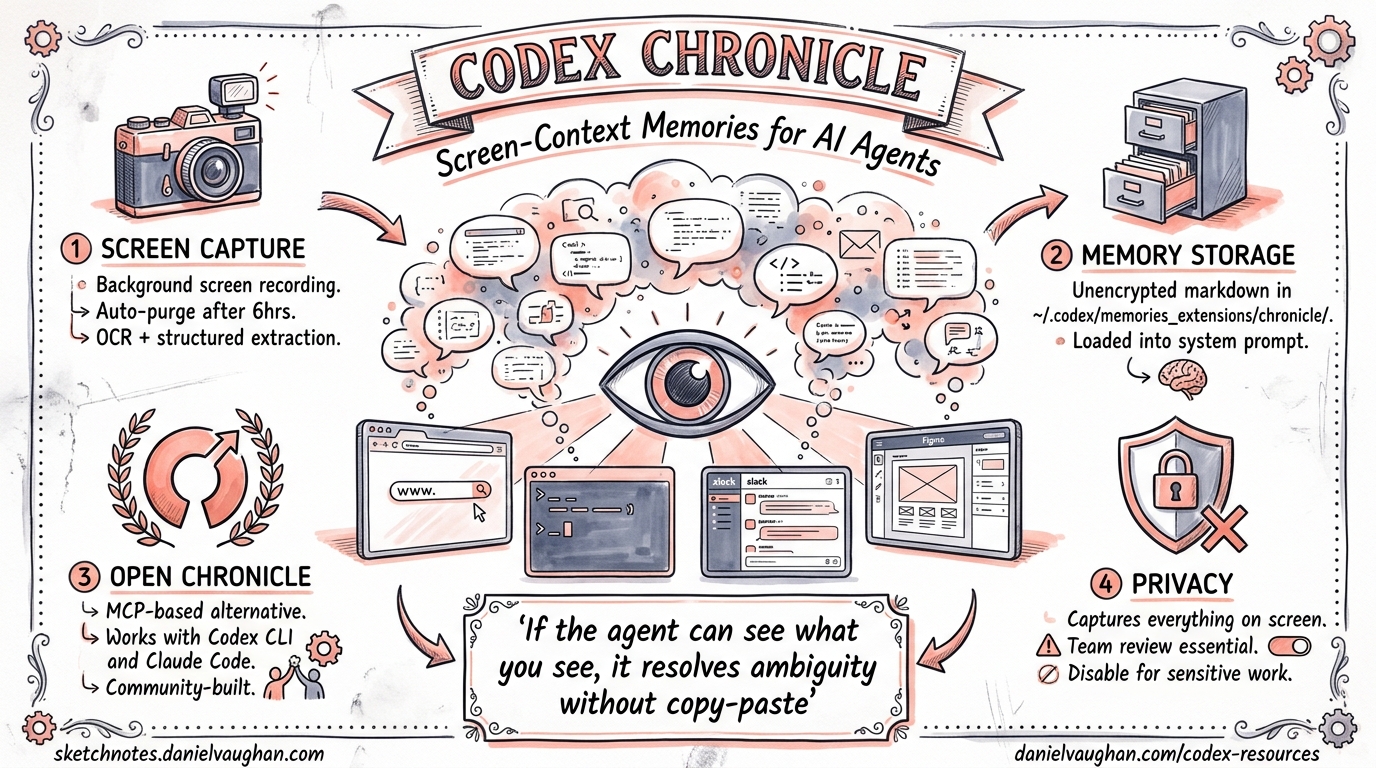
On 20 April 2026, OpenAI shipped Chronicle as a research preview inside the Codex macOS app 1. The feature augments Codex’s existing memory system with context drawn from what is currently on your screen — error messages, open documentation tabs, terminal output, design mocks — without the developer needing to copy-paste or explain anything. Two days later, an open-source alternative called Open Chronicle appeared, bringing the same concept to Codex CLI and Claude Code via MCP 2.
This article examines both approaches: how screen-context memories work, how they integrate with the CLI, and the privacy trade-offs every team should evaluate before enabling them.
Why Screen Context Matters
Coding agents already read your codebase. What they cannot see is everything else that shapes your next prompt: the stack trace in a browser tab, the Figma mock you are referencing, the Slack thread where a colleague explained the expected behaviour, or the Datadog dashboard showing a latency spike. Developers constantly context-switch between these windows, and the cost of re-stating that context to an agent is real — both in tokens and in cognitive load.
Chronicle’s thesis is simple: if the agent can observe what you have been looking at, it can resolve ambiguity (“fix this error”, “match that design”) without an explicit context dump.
How Chronicle Works
sequenceDiagram
    participant Screen as macOS Screen
    participant Chronicle as Chronicle Agent
    participant Storage as Local Storage
    participant OpenAI as OpenAI Servers
    participant Memory as ~/.codex/memories_extensions/chronicle/

    Screen->>Chronicle: Periodic screen capture
    Chronicle->>Storage: Save PNG to $TMPDIR/chronicle/screen_recording/
    Chronicle->>OpenAI: Send selected frames for processing
    OpenAI->>Chronicle: Return structured memory entries
    Chronicle->>Memory: Write unencrypted markdown files
    Note over Storage: Auto-delete captures > 6 hours old
Capture Pipeline
Chronicle runs as a background process on macOS, periodically capturing the screen and storing images under $TMPDIR/chronicle/screen_recording/ 1. Captures older than six hours are automatically purged while the feature is active. Selected frames are sent to an ephemeral Codex session on OpenAI’s servers, which extracts structured memories — summaries of what was visible, OCR text, file paths, and timing metadata 3.
Memory Storage
Generated memories land in ~/.codex/memories_extensions/chronicle/ as unencrypted markdown files 4. These sit alongside the core memory system under ~/.codex/memories/, which stores durable entries, summaries, and evidence from prior threads 5. When you start a new Codex session — whether in the app or via codex / codex exec on the CLI — the memory loader picks up Chronicle entries alongside regular memories, injecting relevant context into the system prompt.
Configuration
Chronicle’s consolidation model can be overridden in your Codex configuration:
[memories]
consolidation_model = "gpt-5.4-mini"  # lighter model for summarisation
generate_memories = true
use_memories = true
The consolidation_model key controls which model summarises raw screen captures into memory entries 5. Using a smaller model here keeps costs down whilst still producing useful context.
Enabling Chronicle
Chronicle is currently limited to ChatGPT Pro subscribers on macOS, excluding the EU, UK, and Switzerland 1. Activation requires:
- Settings > Personalisation > Memories — toggle on
- Chronicle — toggle on (appears below the Memories control)
- Accept the consent dialogue
- Grant macOS permissions — Screen Recording and Accessibility
Once active, a menu-bar icon provides pause/resume controls. OpenAI recommends pausing Chronicle before meetings or when viewing sensitive material 3.
CLI Integration: The Shared Memory Layer
Chronicle generates memories that live in the Codex home directory. Because Codex CLI reads from the same ~/.codex/memories/ and ~/.codex/memories_extensions/ hierarchy, Chronicle memories are available in CLI sessions automatically — no additional configuration required 5.
This means a developer who has been debugging in the browser with Chronicle active can switch to the terminal and run:
codex "fix the TypeError I was just looking at"
The agent resolves “the TypeError” by consulting Chronicle memories that captured the browser’s console output minutes earlier.
Memory Controls in the TUI
The /memories slash command provides per-session control over memory behaviour without changing global settings 5. This is useful when you want a clean session that ignores Chronicle context:
/memories off     # disable memory injection for this thread
/memories on      # re-enable
/memories list    # inspect loaded memories
Open Chronicle: The Open-Source Alternative
For teams that cannot or will not send screen data to OpenAI’s servers, Open Chronicle offers a fully local alternative 2. It ships as a macOS menu-bar application with an MCP server, supporting both Codex CLI and Claude Code.
Architecture Comparison
| Dimension | OpenAI Chronicle | Open Chronicle |
|---|---|---|
| OCR engine | OpenAI servers | Apple Vision (on-device) |
| LLM for summaries | OpenAI models (cloud) | Ollama, LM Studio, or cloud APIs |
| Storage | ~/.codex/memories_extensions/chronicle/ |
~/.open-chronicle/open-chronicle.db (SQLite) |
| Retention | 6 hours (captures) | 30 minutes (captures), indefinite (memories) |
| Agent integration | Native memory loader | MCP server with auto-invoke rules |
| Completely offline | No | Yes (with Ollama/LM Studio) |
| Default exclusions | Manual pause | Password managers, messaging apps, mail clients 2 |
Setting Up Open Chronicle with Codex CLI
Open Chronicle auto-configures both ~/.codex/AGENTS.md and registers its MCP server during onboarding 2. The MCP server groups activity into 60-second windows and serves two-sentence summaries on demand. An auto-invoke rule tells Codex CLI to call the Chronicle MCP tool when it encounters ambiguous, context-dependent prompts like “continue where I left off” or “why is this failing?”
# Install Open Chronicle
git clone https://github.com/Screenata/open-chronicle
cd open-chronicle/app
swift run -c release

# Configure the LLM provider (e.g. local Ollama)
cat > open-chronicle/mcp/.env << 'EOF'
LLM_PROVIDER=ollama
LLM_MODEL=llama3.2
CAPTURE_INTERVAL=10
MEMORY_WINDOW=60
EOF
After launching the menu-bar app and granting Screen Recording permissions, Codex CLI sessions automatically gain access to screen context via MCP.
Security and Privacy Considerations
Screen-context memory is powerful but introduces risks that merit serious evaluation.
Prompt Injection Surface
OpenAI explicitly warns that Chronicle “increases exposure to prompt injection attacks from on-screen content” 4. Malicious text visible on screen — in a phishing email, a crafted web page, or even a colleague’s screen share — could be ingested into memories and subsequently influence agent behaviour. This is a new attack surface that does not exist in code-only agents.
Unencrypted Local Storage
Both Chronicle and Open Chronicle store memories as unencrypted files 4 2. Any process with file-system access can read them. On shared workstations or machines without full-disk encryption, this is a material risk. OpenAI’s documentation notes: “Be aware that other apps may access these files” 1.
Rate Limit Consumption
Chronicle “consumes rate limits quickly” 4. Each screen capture processed by the ephemeral Codex session counts against your API quota. Teams on usage-based billing should monitor codex usage output and consider scheduling Chronicle pauses during non-coding activities.
Enterprise Recommendations
flowchart TD
    A[Should we enable Chronicle?] --> B{Sensitivity of screen content}
    B -->|Low - personal dev machine| C[Enable with default settings]
    B -->|Medium - mixed work| D[Enable with pause discipline]
    B -->|High - regulated/classified| E{Can we go fully local?}
    E -->|Yes| F[Use Open Chronicle + Ollama]
    E -->|No| G[Do not enable]
    D --> H[Audit ~/.codex/memories_extensions/ weekly]
    C --> H
    F --> I[Audit ~/.open-chronicle/ weekly]
For regulated environments, the safest option is Open Chronicle with a local LLM (Ollama or LM Studio), which keeps all data on the developer’s machine and sends nothing to external servers 2. Teams that cannot justify even local screen capture should skip both tools and rely on explicit context-sharing via codex --image or manual copy-paste.
Practical Workflow Patterns
Pattern 1: Debug Loop With Visual Context
A developer sees a rendering bug in the browser, switches to the terminal, and types:
codex "the button alignment issue I was just looking at — fix the CSS"
Chronicle’s memory of the browser screenshot provides the visual context. The agent identifies the misaligned element from the OCR text and cross-references it with the project’s CSS files.
Pattern 2: Documentation-Driven Implementation
While reading an API’s reference documentation in a browser tab, the developer asks Codex to implement the integration:
codex "implement the webhook handler from the docs I have open"
Chronicle supplies the endpoint paths, payload schemas, and authentication details from the documentation page without the developer copying anything.
Pattern 3: Post-Incident Context
After a production incident where the developer has been switching between Datadog, PagerDuty, and Slack, Chronicle captures the timeline. A follow-up session can reference this ambient context:
codex "write the post-mortem for the incident I was investigating"
Limitations and Known Issues
- macOS only — Chronicle (both flavours) requires macOS 14+ and Apple’s screen-capture APIs. Linux and Windows developers have no equivalent today. 1 2
- No audio capture — Chronicle processes visual content only; spoken context from meetings or pair-programming calls is not captured. 1
- Memory staleness — Chronicle memories are summaries, not verbatim recordings. Nuance can be lost, and stale memories from hours ago may mislead the agent if the situation has changed.
- Regional restrictions — OpenAI Chronicle is unavailable in the EU, UK, and Switzerland due to regulatory constraints. 1
- Rate limit pressure — heavy Chronicle usage on Pro plans can exhaust daily quotas before coding work begins. 4
Looking Ahead
Chronicle signals a broader shift towards ambient developer awareness — agents that passively observe the developer’s working environment rather than waiting for explicit instructions. The open-source ecosystem is already extending this with cross-agent compatibility (Open Chronicle supports both Codex CLI and Claude Code simultaneously 2), and it is reasonable to expect Linux support, IDE-native capture, and encrypted memory stores to follow.
For now, Chronicle is best treated as an experimental productivity lever: powerful when the developer understands its privacy boundaries, and best left disabled when those boundaries are unclear.
Citations
-
OpenAI. “Chronicle — Codex Memories.” OpenAI Developers. https://developers.openai.com/codex/memories/chronicle ↩ ↩2 ↩3 ↩4 ↩5 ↩6 ↩7
-
Screenata. “Open Chronicle: Local screen memory for Claude Code and Codex CLI.” GitHub. https://github.com/Screenata/open-chronicle ↩ ↩2 ↩3 ↩4 ↩5 ↩6 ↩7 ↩8
-
9to5Mac. “Codex for Mac gains Chronicle for enhancing context using recent screen content.” 20 April 2026. https://9to5mac.com/2026/04/20/codex-for-mac-gains-chronicle-for-enhancing-context-using-recent-screen-content/ ↩ ↩2
-
Help Net Security. “OpenAI’s Chronicle feature lets Codex read your screen, raising privacy concerns.” 21 April 2026. https://www.helpnetsecurity.com/2026/04/21/openai-chronicle-codex-screen-context-memories/ ↩ ↩2 ↩3 ↩4 ↩5
-
OpenAI. “Memories — Codex.” OpenAI Developers. https://developers.openai.com/codex/memories ↩ ↩2 ↩3 ↩4