Codex Remote Connections: Mobile Pairing, SSH Hosts, and Enterprise Access Tokens
Codex Remote Connections: Mobile Pairing, SSH Hosts, and Enterprise Access Tokens
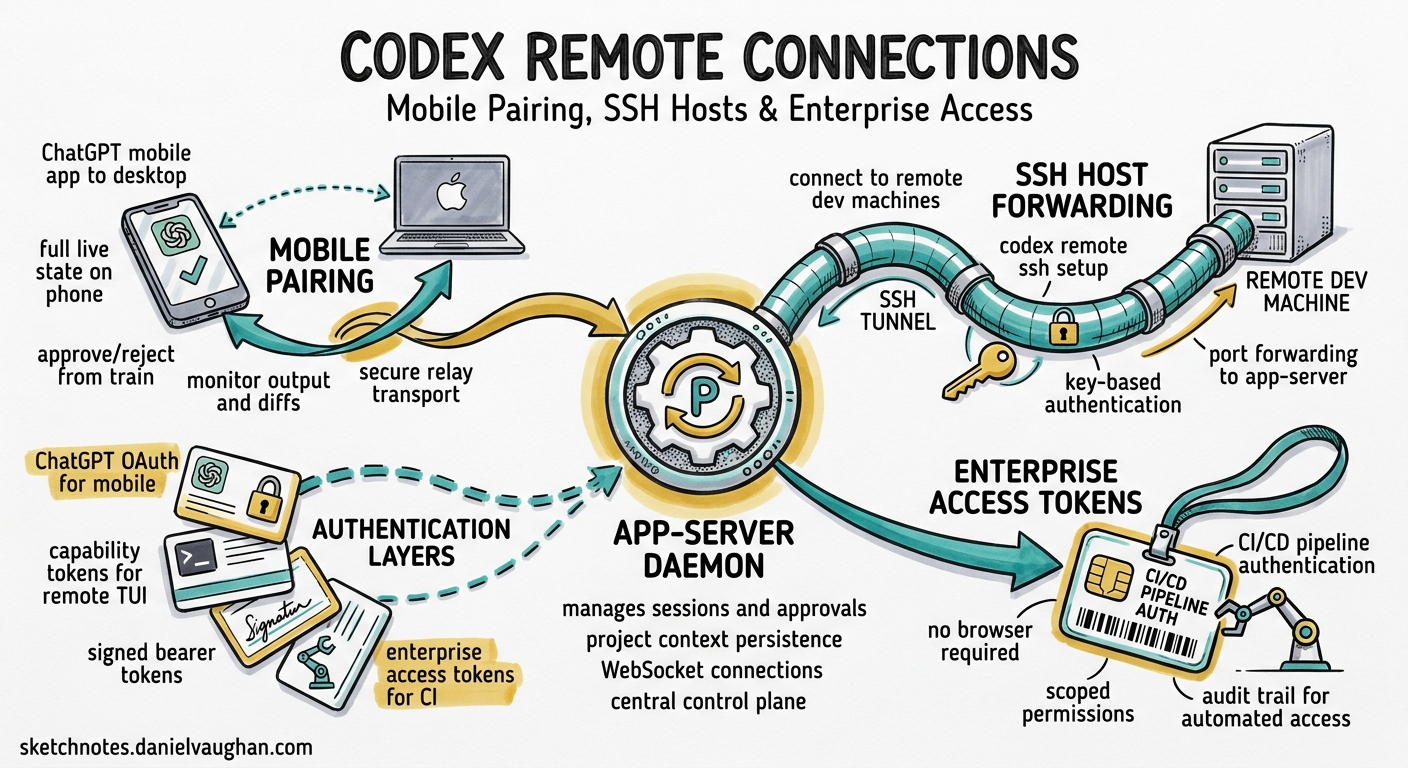
Codex has quietly evolved from a single-machine terminal tool into a multi-surface development platform. The remote connections system — spanning mobile pairing, SSH host forwarding, device-to-device control, and enterprise access tokens — is the infrastructure that makes this possible. This article covers the architecture, configuration, and security model of every remote access surface, so you can run a long migration on your Mac mini, approve file writes from your phone on the train, and let your CI pipeline authenticate without a browser.
The Remote Access Architecture
Codex remote connections operate through three distinct transport layers, each serving a different use case:
graph TD
    A[Codex App Server<br/>Host Machine] -->|Secure Relay| B[ChatGPT Mobile App]
    A -->|WebSocket| C[Remote TUI Client]
    A -->|SSH Tunnel| D[Remote Dev Machine]
    A -->|Access Token| E[CI/CD Pipeline]

    subgraph "Authentication Layer"
        F[ChatGPT OAuth]
        G[Capability Token]
        H[Signed Bearer Token]
        I[Enterprise Access Token]
    end

    B --> F
    C --> G
    C --> H
    E --> I
At the centre sits the app-server daemon — a persistent process that manages sessions, tool approvals, and project context 1. Every remote surface connects to this daemon through one of the transport mechanisms above.
Mobile Pairing: Phone-to-Desktop Control
Since 14 May 2026, the ChatGPT mobile app can connect directly to a running Codex environment on your Mac 2. This is not a stripped-down notification feed — the mobile client loads the full live state, including active threads, pending approvals, plugin context, and project files.
What You Can Do From Your Phone
- Monitor terminal output, code diffs, and test results in real time
- Approve or reject file writes, shell commands, and tool invocations
- Send follow-up instructions to steer active work
- Switch between multiple connected hosts
- Review screenshots from browser-based tasks 3
Setup Flow
- Update both the ChatGPT mobile app and the macOS Codex App to the latest versions
- Open the Codex App on your Mac and navigate to Settings > Connections
- Enable “Allow other devices to connect” (disabled by default) 3
- Scan the QR code displayed on the desktop from the ChatGPT mobile app
- Confirm the same ChatGPT account and workspace, then complete any MFA/SSO/passkey challenges
The connection uses OpenAI’s secure relay infrastructure — a managed service that keeps your host reachable across network boundaries without exposing ports or configuring NAT traversal 1. Traffic flows through OpenAI’s relay, encrypted end-to-end, so your host never needs a public IP.
Current Limitations
- macOS only — Windows support is listed as “coming soon” 3
- Both devices must share the same ChatGPT account and workspace
- Not available in EU/UK regions at launch 4
SSH Remote Projects
For developers working on remote servers, VMs, or cloud instances, Codex supports SSH-based remote project access. This connects the Codex App to a remote machine where the actual code lives.
Configuration
Add your remote host to ~/.ssh/config:
Host dev-server
    HostName 10.0.1.42
    User deploy
    IdentityFile ~/.ssh/id_ed25519
Codex reads concrete host aliases from ~/.ssh/config, resolves them with OpenSSH, and ignores pattern-only hosts 1. Once configured:
- Verify SSH connectivity:
ssh dev-server echo "connected" - Ensure the
codexcommand is available on the remote machine’s PATH - In the Codex App, navigate to Settings > Connections and add the SSH host
- Configure the remote project folder
The Codex App then runs the remote app-server process through SSH, using the remote user’s login shell 1. Your local Codex App becomes a thin client rendering the remote environment’s full state.
SSH Port Forwarding for Headless Authentication
On remote machines where a browser is unavailable for the standard ChatGPT OAuth login, tunnel the authentication port:
# From your local machine
ssh -L 1455:localhost:1455 dev-server

# Then on the remote machine, run the standard login
codex login
The browser opens locally, but the authentication token flows back to the remote machine through the tunnel 5.
Alternatively, copy cached credentials directly:
scp ~/.codex/auth.json dev-server:~/.codex/auth.json
Treat auth.json like a private key — never commit it, never share it over insecure channels 5.
Device-to-Device Control
Beyond mobile, any signed-in Codex App can control another. Enable “Control other devices” in Settings > Connections on the host machine, and any device authenticated with the same ChatGPT account gains access 1.
This creates a natural workflow for developers with multiple machines: start a long-running task on your desktop workstation, then pick it up on your laptop when you move to a meeting room.
The App-Server Daemon and WebSocket Transport
Under the hood, all remote surfaces connect to the app-server daemon. For programmatic access or custom tooling, you can start it manually with WebSocket transport:
# Start the app-server with WebSocket listener
codex app-server --listen ws://127.0.0.1:4500
Connect a remote TUI client:
codex --remote ws://127.0.0.1:4500
Authentication Modes for WebSocket
Two authentication mechanisms protect WebSocket connections 6:
Capability token — a shared secret verified on connection:
codex app-server --listen ws://127.0.0.1:4500 \
  --ws-auth capability-token \
  --ws-token-file /path/to/secret.txt
Signed bearer token — JWT-style authentication with issuer/audience validation:
codex app-server --listen ws://127.0.0.1:4500 \
  --ws-auth signed-bearer-token \
  --ws-shared-secret-file /path/to/shared-secret \
  --ws-issuer "my-org" \
  --ws-audience "codex-prod" \
  --ws-max-clock-skew-seconds 30
For the managed daemon experience, codex remote-control wraps this into a single command that starts the app-server with remote-control support enabled 6. This is the recommended entrypoint for most remote workflows, rather than manually configuring app-server --listen.
Security note: The server accepts
ws://listen URLs, but you should always use TLS termination or a secure proxy when clients connect over untrusted networks. Never expose rawws://on a public interface 6.
Enterprise Access Tokens
For CI/CD pipelines and automated workflows, browser-based OAuth is impractical. Enterprise access tokens solve this by providing non-interactive authentication that inherits workspace identity and governance controls 57.
How They Work
Access tokens are available on ChatGPT Enterprise and Business plans. Workspace admins control availability and can restrict which roles may create tokens 7. Once created, a token provides:
- ChatGPT workspace access (including subscription entitlements)
- Enterprise policy enforcement (managed configuration, approval requirements)
- Audit trail visibility in the workspace governance dashboard
- No browser interaction required
CI/CD Integration
# Store the access token in your CI secrets
# Then authenticate non-interactively
printenv CODEX_ACCESS_TOKEN | codex login --with-access-token

# Run headless automation with workspace identity
codex exec "Run the test suite and fix any failures"
For remote app-server connections in CI:
codex --remote wss://codex-host.internal:4500 \
  --remote-auth-token-env CODEX_BEARER_TOKEN
The --remote-auth-token-env flag reads the bearer token from an environment variable and only sends it over wss:// or localhost ws:// connections — never over unencrypted remote WebSocket 6.
Token Governance
Enterprise admins should establish policies for:
- Token rotation cadence — treat tokens like service account credentials
- Least-privilege scoping — tokens inherit the creating user’s workspace permissions
- Activity monitoring — token usage appears in workspace governance views 7
- Revocation procedures — revoke immediately when a team member departs or a pipeline is decommissioned
The Device-Code Flow Alternative
For environments where neither browser login nor access tokens are available, Codex offers the device-code flow (beta) 5:
# Enable device auth in ChatGPT security settings first
codex login --device-auth
This displays a URL and one-time code. Open the URL on any browser (even on a different device), enter the code, and the CLI receives authentication. This is particularly useful for SSH sessions to machines where you cannot forward port 1455.
Credential Storage
Control where the CLI caches authentication credentials via cli_auth_credentials_store in config.toml 5:
[auth]
cli_auth_credentials_store = "keyring"  # Options: "file", "keyring", "auto"
| Value | Behaviour |
|---|---|
file |
Stores in ~/.codex/auth.json — portable but less secure |
keyring |
Uses the OS credential store (macOS Keychain, Linux Secret Service) |
auto |
Prefers OS store, falls back to file |
For enterprise deployments, mandate keyring through managed configuration to prevent credentials from sitting in plaintext on disk.
Putting It Together: A Multi-Surface Workflow
sequenceDiagram
    participant Dev as Developer (Desktop)
    participant Daemon as App-Server Daemon
    participant Mobile as ChatGPT Mobile
    participant CI as CI Pipeline

    Dev->>Daemon: Start long migration task
    Dev->>Dev: Leave desk

    Mobile->>Daemon: Connect via secure relay
    Daemon->>Mobile: Stream progress + approval requests
    Mobile->>Daemon: Approve schema change

    CI->>Daemon: Authenticate with access token
    CI->>Daemon: codex exec "run post-migration tests"
    Daemon->>CI: Return structured results
    Daemon->>Mobile: Notify: tests passed
This is the workflow Codex remote connections enable: start work on one surface, monitor from another, approve from a third, and automate from a fourth — all backed by the same daemon, same project context, and same security model.
Recommendations
- Enable remote control only when needed — it is disabled by default for good reason
- Use
keyringcredential storage on all machines to avoid plaintextauth.jsonfiles - Prefer
codex remote-controlover manualapp-server --listenfor managed daemon workflows - Rotate enterprise access tokens on the same cadence as service account credentials
- Never expose
ws://on public interfaces — always terminate TLS upstream or usewss:// - Enable MFA on your ChatGPT account before using any remote access surface 5
Citations
-
[Remote connections – Codex OpenAI Developers](https://developers.openai.com/codex/remote-connections) -
Codex Now Supports Remote Access from ChatGPT Mobile, with Access Tokens for Enterprise Workspaces – Knightli ↩
-
[Work with Codex from anywhere OpenAI](https://openai.com/index/work-with-codex-from-anywhere/) -
OpenAI Codex Lands on ChatGPT Mobile App for iOS and Android With Remote SSH Support – Gadget Bridge ↩
-
[Authentication – Codex OpenAI Developers](https://developers.openai.com/codex/auth) -
[Command line options – Codex CLI OpenAI Developers](https://developers.openai.com/codex/cli/reference) -
[Changelog – Codex OpenAI Developers](https://developers.openai.com/codex/changelog)