Codex CLI Remote Development: App Server Architecture, SSH Connections, and Multi-Environment Workflows
Codex CLI Remote Development: App Server Architecture, SSH Connections, and Multi-Environment Workflows
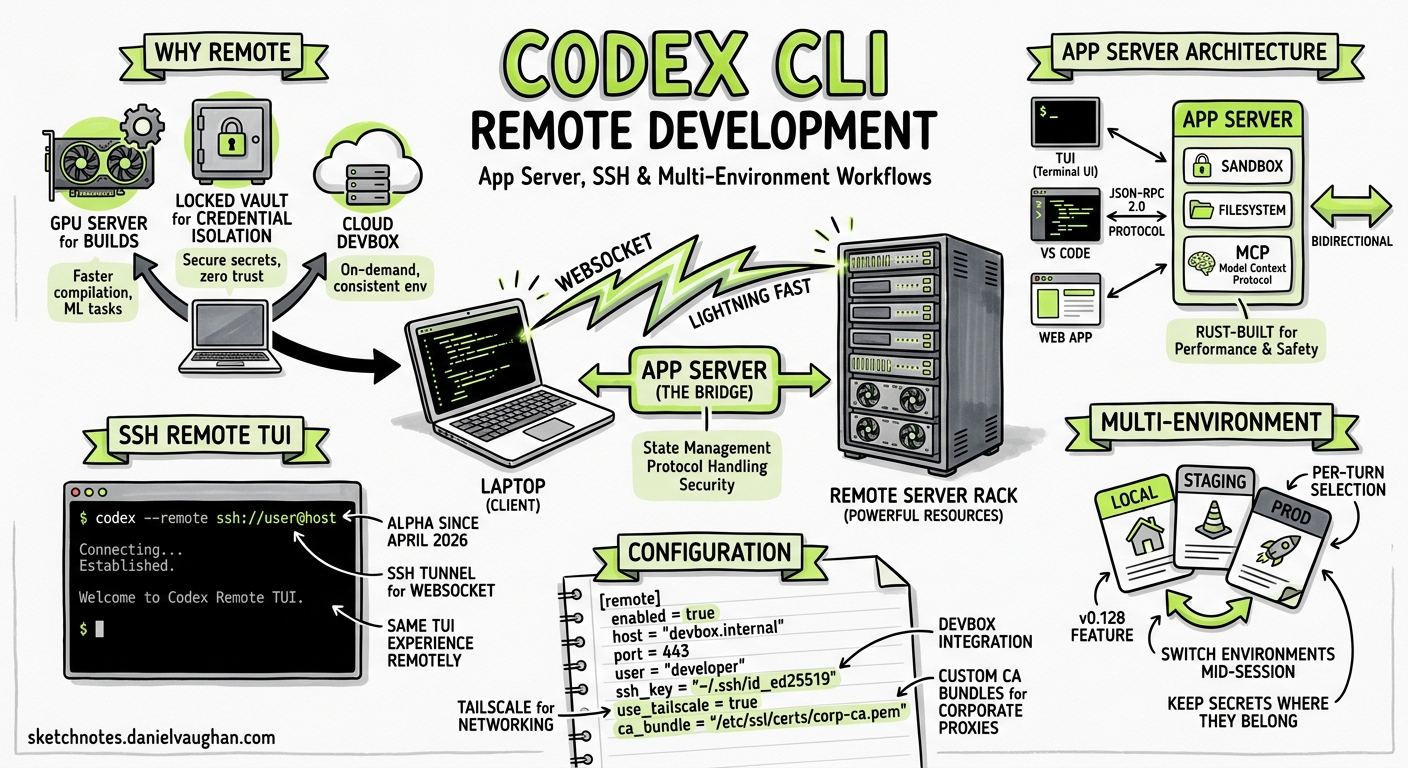
Running your coding agent on a beefy remote machine whilst driving it from a laptop is no longer a workaround — it is an officially supported workflow. Since v0.125, the Codex App Server has matured from an internal implementation detail into a documented protocol powering every Codex surface: the CLI, the VS Code extension, the desktop app, and third-party IDE integrations1. With the April 2026 alpha launch of remote SSH connections2 and per-turn multi-environment selection in v0.1283, the architecture is ready for serious remote development use. This article explains what the App Server is, how to configure remote TUI sessions, and how to build multi-environment workflows that keep your code, credentials, and build toolchains where they belong.
Why Remote Matters for Coding Agents
Most coding agents assume the codebase sits on the same machine as the agent process. That assumption breaks in three common scenarios:
- GPU build servers — CUDA compilation, ML training loops, and large C++ builds need hardware that lives in a data centre, not on a MacBook Air.
- Credential isolation — Production secrets, signing keys, and database credentials exist on locked-down infrastructure that should never be cloned to developer laptops.
- Cloud devboxes — Teams using ephemeral development environments (Coder, Gitpod, GitHub Codespaces) need the agent to run inside the devbox where the toolchain is pre-configured.
The App Server solves all three by decoupling the agent’s execution from its user interface.
The App Server Architecture
The App Server is a bidirectional JSON-RPC 2.0 protocol built in Rust that separates the Codex agent loop from its client surfaces1. OpenAI initially experimented with MCP for VS Code integration but found that streaming diffs, approval flows, and thread persistence did not map cleanly onto MCP’s tool-oriented model4. The result is a purpose-built protocol with three core primitives:
graph TD
    subgraph "App Server (Remote Host)"
        AS[App Server Process]
        SB[Sandbox]
        FS[Filesystem]
        MCP[MCP Servers]
    end
    subgraph "Client (Local Machine)"
        TUI[Terminal UI]
        VSC[VS Code Extension]
        WEB[Web App]
    end
    TUI -->|JSON-RPC over WebSocket| AS
    VSC -->|JSON-RPC over stdio| AS
    WEB -->|HTTP + SSE| AS
    AS --> SB
    AS --> FS
    AS --> MCP
Threads are durable conversation containers that persist across disconnects via rollout files. Turns represent a single user request plus the agent’s response cycle. Items are atomic units of input or output — messages, commands, file edits, or tool calls5.
Transport Options
The App Server supports three transports5:
| Transport | Flag | Use Case |
|---|---|---|
| stdio | Default | Local clients (VS Code, desktop app) |
| WebSocket | --listen ws://IP:PORT |
Remote TUI, cross-network access |
| Unix socket | Via control socket | Local IPC with lower overhead |
For remote development, WebSocket is the primary transport.
Setting Up Remote TUI
Remote TUI mode runs the App Server on one machine and connects the Codex terminal UI from another2. The simplest setup uses SSH port forwarding to avoid exposing the WebSocket listener to the network.
Step 1: Enable the Alpha Feature
On your local machine, enable remote connections:
# ~/.codex/config.toml
[features]
remote_connections = true
Step 2: Install Codex on the Remote Host
Ensure codex is on the remote user’s login shell PATH. The App Server bootstraps through the login shell, so if codex is only available in an interactive shell (e.g. loaded via .bashrc but not .bash_profile), the connection will fail even though plain SSH works2.
Step 3: Configure SSH
Add the remote host to your SSH config:
# ~/.ssh/config
Host devbox
  HostName devbox.example.com
  User you
  IdentityFile ~/.ssh/id_ed25519
Codex auto-discovers concrete host aliases from ~/.ssh/config and ignores pattern-only entries (e.g. Host *)2.
Step 4: Connect
Option A — SSH port forwarding (recommended):
Start the App Server on the remote host listening on localhost:
# On remote host
codex app-server --listen ws://127.0.0.1:4500
Forward the port through SSH:
# On local machine
ssh -L 4500:127.0.0.1:4500 devbox
Then connect the TUI:
codex --remote ws://127.0.0.1:4500
Option B — Direct WebSocket with authentication:
If SSH port forwarding is impractical (e.g. web-based clients), start the App Server with token authentication:
# On remote host — generate a token file
openssl rand -hex 32 > /tmp/codex-ws-token
codex app-server \
  --listen ws://0.0.0.0:4500 \
  --ws-auth capability-token \
  --ws-token-file /tmp/codex-ws-token
Then connect with the token:
# On local machine
export CODEX_REMOTE_AUTH_TOKEN=$(cat /tmp/codex-ws-token)
codex --remote ws://devbox:4500 \
  --remote-auth-token-env CODEX_REMOTE_AUTH_TOKEN
Authentication Deep Dive
Non-loopback WebSocket listeners require explicit authentication. The App Server supports two modes5:
Capability Token
A shared secret stored in a file on the server. The client presents it as Authorization: Bearer <token> during the WebSocket handshake. Simple and suitable for single-user setups.
codex app-server --listen ws://0.0.0.0:4500 \
  --ws-auth capability-token \
  --ws-token-sha256 $(sha256sum /tmp/codex-ws-token | cut -d' ' -f1)
Signed Bearer Token
HMAC-based JWT validation with configurable issuer and audience claims. Designed for multi-user or enterprise deployments where tokens are minted by an identity provider:
codex app-server --listen ws://0.0.0.0:4500 \
  --ws-auth signed-bearer-token \
  --ws-shared-secret-file /etc/codex/hmac-secret \
  --ws-issuer "https://auth.example.com" \
  --ws-audience "codex-devbox"
Multi-Environment Per-Turn Workflows
The v0.128 release introduced multi-environment support for App Server sessions3. Each turn can target a different environment and working directory, which is particularly useful for polyglot monorepos, multi-service architectures, and mixed local/remote workflows.
sequenceDiagram
    participant Dev as Developer (TUI)
    participant AS as App Server
    participant Env1 as Environment: Backend
    participant Env2 as Environment: Frontend

    Dev->>AS: turn/start (cwd: /app/backend)
    AS->>Env1: Execute in backend context
    Env1-->>AS: Results
    AS-->>Dev: turn/completed

    Dev->>AS: turn/start (cwd: /app/frontend)
    AS->>Env2: Execute in frontend context
    Env2-->>AS: Results
    AS-->>Dev: turn/completed
The turn/start method accepts per-turn overrides for model, reasoning effort, working directory, sandbox policy, and output schema5. This means you can:
- Switch between a Go backend and a React frontend within one session
- Target different sandbox policies per turn (read-only for exploration, workspace-write for implementation)
- Use different models per turn (Spark for quick queries, GPT-5.5 for complex refactoring)
Cloud Environments
For Codex Cloud users, the codex cloud exec command supports environment targeting directly:
codex cloud exec --env ENV_ID "Summarise open bugs"
The --attempts flag (1–4) requests multiple solution variants for a single task6.
Security Hardening for Remote Deployments
Remote App Server deployments expand the attack surface. Follow these guidelines:
Network Security
- Never expose the App Server directly to the internet2. Use SSH port forwarding, a VPN, or a mesh network like Tailscale7.
- The App Server rejects HTTP requests with
Originheaders on the health endpoint to prevent cross-origin abuse5. - Bounded WebSocket queues reject requests with error code
-32001when saturated, providing backpressure rather than unbounded memory growth5.
Credential Isolation
# Remote host config.toml
[security]
deny_read_paths = [
  "~/.ssh",
  "~/.aws/credentials",
  "~/.config/gcloud",
  "/etc/secrets"
]

shell_environment_policy = "exclude-all-except-system-defaults"
Health Monitoring
The App Server exposes two HTTP endpoints when running in WebSocket mode5:
GET /readyz— returns200 OKonce the server is accepting connectionsGET /healthz— returns200 OKfor health checks (rejects requests withOriginheaders)
These integrate naturally with load balancers, container orchestrators, and monitoring systems.
Practical Deployment Patterns
Pattern 1: SSH-Forwarded Single Developer
The simplest pattern. One developer, one remote machine, SSH port forwarding for security.
# Terminal 1: SSH with port forward
ssh -L 4500:127.0.0.1:4500 devbox \
  "codex app-server --listen ws://127.0.0.1:4500"

# Terminal 2: Connect TUI
codex --remote ws://127.0.0.1:4500
Pattern 2: Tailscale Mesh for Team Devboxes
For teams sharing development infrastructure, Tailscale provides private networking without exposed ports7:
# On remote devbox (100.x.x.x via Tailscale)
codex app-server --listen ws://100.64.0.5:4500 \
  --ws-auth capability-token \
  --ws-token-file /etc/codex/team-token

# From any team member's machine on the tailnet
codex --remote ws://100.64.0.5:4500 \
  --remote-auth-token-env CODEX_TEAM_TOKEN
Pattern 3: Container-Based Devbox
For ephemeral environments where the App Server runs inside a container:
# Dockerfile excerpt
FROM ubuntu:24.04
RUN curl -fsSL https://codex.openai.com/install.sh | sh
EXPOSE 4500
CMD ["codex", "app-server", "--listen", "ws://0.0.0.0:4500", \
     "--ws-auth", "capability-token", \
     "--ws-token-file", "/run/secrets/codex-token"]
Pattern 4: Codex Desktop App with SSH
The desktop app natively supports SSH connections through its GUI2:
- Open Settings → Connections
- Add or enable an SSH host (auto-discovered from
~/.ssh/config) - Select a remote project folder
- Remote threads execute commands, read files, and write changes on the remote host
Known Limitations
| Limitation | Status | Workaround |
|---|---|---|
| Remote connections are alpha | [features] remote_connections = true required |
Expect breaking changes |
| WebSocket mode is experimental | Stability improving each release | Use SSH forwarding for reliability |
| No native Tailscale integration | Manual IP configuration | Use Tailscale MagicDNS hostnames |
| Login shell PATH issues | Common failure cause | Ensure codex is in .bash_profile or .profile, not just .bashrc2 |
| Outbound queue limit (128 messages) | Can disconnect during large turns | ⚠️ Reported in GitHub Issue #18203 |
Decision Framework
flowchart TD
    A[Where is your code?] -->|Local machine| B[Use standard Codex CLI]
    A -->|Remote server| C{Network access?}
    C -->|SSH available| D{Single developer?}
    D -->|Yes| E[SSH port forwarding]
    D -->|No| F[Tailscale + token auth]
    C -->|Web only| G[WebSocket + signed bearer token]
    C -->|Cloud devbox| H[Codex Desktop SSH integration]
What Comes Next
The App Server is the foundation for Codex’s multi-surface strategy. OpenAI has stated that MCP remains supported for simpler workflows, but the App Server is recommended for full-fidelity IDE integrations4. With multi-environment per-turn selection now available, the path towards seamless remote development — where the agent runs wherever the code lives, and the developer connects from wherever they are — is well under way.
For most practitioners today, the SSH port-forwarding pattern provides the best balance of security, simplicity, and reliability. Start there, and graduate to authenticated WebSocket listeners when your team or infrastructure demands it.
Citations
-
InfoQ — OpenAI Publishes Codex App Server Architecture for Unifying AI Agent Surfaces ↩ ↩2
-
OpenAI — Remote Connections (Codex Developer Docs) ↩ ↩2 ↩3 ↩4 ↩5 ↩6 ↩7
-
OpenAI — Codex Changelog (v0.128 multi-environment per-turn) ↩ ↩2
-
OpenAI — Unlocking the Codex Harness: How We Built the App Server ↩ ↩2
-
OpenAI — App Server (Codex Developer Docs) ↩ ↩2 ↩3 ↩4 ↩5 ↩6 ↩7
-
OpenAI — Remote Connections Security Guidance (Tailscale/VPN recommendation) ↩ ↩2