Codex CLI /ide Context Injection: Bridging Your Terminal and Editor Through IPC
Codex CLI /ide Context Injection: Bridging Your Terminal and Editor Through IPC
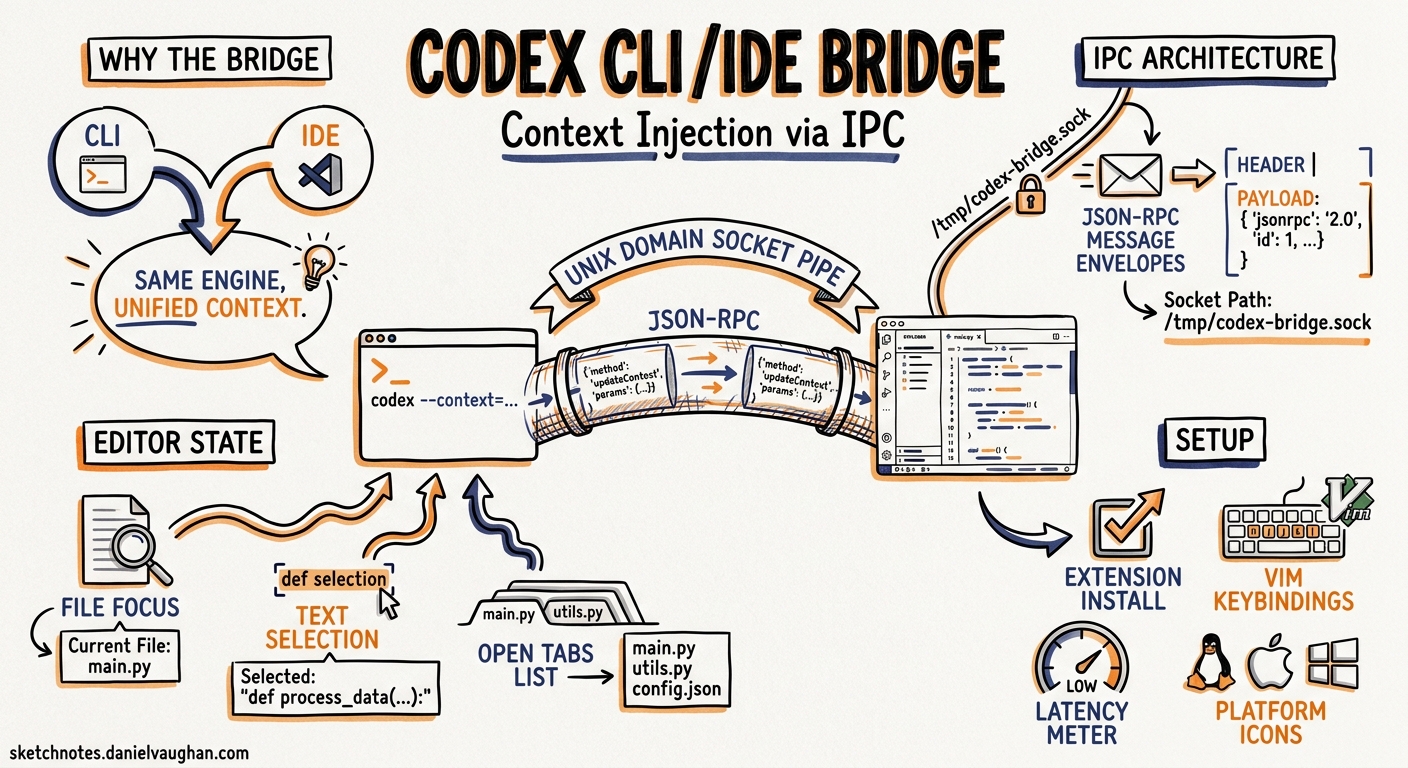
Terminal-native developers have long faced an awkward choice: use the Codex IDE extension for editor context, or use the CLI for its richer TUI, Vim keybindings, and scripting power. With v0.129.0 (7 May 2026), that choice disappears. The /ide slash command bridges the CLI and your editor through a Unix domain socket, letting the TUI pull file selections, open tabs, and cursor positions directly from VS Code or Cursor — without leaving the terminal1.
This article examines the IPC architecture, walks through setup and workflow patterns, and addresses the practical limitations you should know before relying on this bridge in production.
Why the Bridge Matters
The Codex CLI and IDE extension share the same agent engine and the same ~/.codex/config.toml2. But until v0.129.0, they operated in isolated context bubbles. The IDE extension knew which file you were editing; the CLI did not. Developers who preferred the terminal had to manually /mention files or paste selections — friction that compounded across long sessions.
The /ide command collapses that gap. When active, the CLI receives a continuous feed of editor state: which file is focused, what text is selected, and which tabs are open3. This means prompts like “refactor the selected function” work identically whether typed in the IDE sidebar or the terminal TUI.
Architecture: Unix Domain Sockets and JSON-RPC
The bridge uses a Unix domain socket for inter-process communication between the Codex extension running inside the editor and the CLI process running in a terminal3.
Socket Path Convention
The socket is created at a deterministic, user-scoped path:
$TMPDIR/codex-ipc/ipc-$UID.sock
On macOS, this resolves to something like:
/var/folders/kl/22qv4d_10pl1bj15h68pmy2w0000gn/T/codex-ipc/ipc-501.sock
The $UID suffix ensures per-user isolation, though multi-user Linux hosts with shared /tmp have exposed edge cases around this — more on that in the limitations section4.
Context Payload
When the CLI connects, it receives structured JSON describing the editor state:
{
  "file": "src/handlers/auth.ts",
  "selection": {
    "start": { "line": 27, "character": 0 },
    "end": { "line": 42, "character": 0 },
    "active": { "line": 42, "character": 0 },
    "anchor": { "line": 27, "character": 0 }
  }
}
The active and anchor fields distinguish cursor direction — useful when the agent needs to understand whether you selected top-down or bottom-up through a block of code3.
sequenceDiagram
    participant Editor as VS Code / Cursor
    participant Socket as Unix Domain Socket
    participant CLI as Codex CLI TUI

    Editor->>Socket: Create socket at $TMPDIR/codex-ipc/ipc-$UID.sock
    CLI->>Socket: Connect on /ide activation
    Socket-->>CLI: Connection established
    loop On editor focus change
        Editor->>Socket: Send context JSON (file, selection, tabs)
        Socket-->>CLI: Forward context payload
    end
    CLI->>CLI: Inject context into agent conversation
Rust Implementation
The client-side IPC logic lives in codex-rs/tui/src/ide_context/ipc.rs within the open-source Codex repository3. The TUI spawns a background task that maintains the socket connection and updates a shared context store. When you type a prompt, the agent automatically includes the latest editor context alongside your message — no explicit /mention needed.
Setup and Prerequisites
Requirements
| Component | Minimum Version |
|---|---|
| Codex CLI | v0.129.0-alpha.15 or later |
| VS Code | 1.96+ with Codex extension |
| Cursor | Any version with Codex extension |
| Windsurf | Any version with Codex extension |
| JetBrains | Rider, IntelliJ, PyCharm, WebStorm with Codex plugin |
Both the CLI and the editor must be working within the same project directory35.
Activating the Bridge
- Open your project in VS Code (or Cursor) with the Codex extension installed and authenticated.
- In a separate terminal, launch the CLI from the same project root:
cd ~/projects/my-service
codex
- Inside the TUI, type:
/ide
If the connection succeeds, the status line displays:
IDE context is on. Connected to your IDE
The extension creates the socket on startup; the CLI merely connects as a client. If you start the CLI before the editor, run /ide again once the extension is active.
Workspace-Aware /diff
The v0.129.0 release also upgraded /diff to be workspace-aware, routing through workspace commands rather than a simple git diff1. When IDE context is active, /diff understands which environment you are working in and scopes its output accordingly. This matters for multi-environment sessions — for example, when you have both a local checkout and a cloud Codex environment open simultaneously.
# In the TUI, after making edits:
/diff
The output now includes untracked files alongside staged and unstaged changes, rendered with the TUI’s syntax-highlighted pager6. Combined with /review, this creates a tight inspect-and-iterate loop:
flowchart LR
    A[Edit in VS Code] --> B[Switch to CLI terminal]
    B --> C["/diff — review changes"]
    C --> D{Looks correct?}
    D -->|Yes| E["/review — agent analysis"]
    D -->|No| F["Prompt agent to fix"]
    F --> A
    E --> G["Commit"]
Practical Workflow Patterns
Pattern 1: Selection-Driven Refactoring
Select a function in VS Code, switch to the CLI, and type:
Refactor the selected code to use early returns instead of nested if/else
The agent sees the exact selection boundaries from the IPC context and scopes its changes accordingly — no need to specify the file or line numbers.
Pattern 2: IDE Context with Vim Mode
v0.129.0 also introduced modal Vim editing in the TUI composer (/vim)1. Combined with /ide, you get an efficient workflow: navigate and select in VS Code’s GUI, then compose and iterate in the terminal with Vim keybindings.
# ~/.codex/config.toml
[tui]
vim_mode_default = true
Pattern 3: Resume with Editor State
The redesigned resume/fork picker in v0.129.0 preserves IDE context across session boundaries1. When you /resume a previous session, the agent retains awareness of which files were open in the editor at the time of the last interaction — provided the editor is still running with the same project.
Pattern 4: Auto-Context in the IDE Extension
The IDE extension offers an /auto-context slash command that automatically includes recent files and IDE context in every prompt7. When paired with the CLI bridge, this creates a dual-surface workflow: the extension feeds context passively, whilst the CLI gives you full TUI control over the conversation.
Known Limitations and Edge Cases
Multi-User Linux Hosts
On shared Linux servers accessed via VS Code Remote-SSH, the socket path /tmp/codex-ipc/ipc-$UID.sock can cause EACCES permission errors when different users create sockets in the same directory4. The recommended workaround is to ensure the codex-ipc directory is created with per-user permissions, or to use $XDG_RUNTIME_DIR instead of /tmp.
Mixed Reception on Auto-Context Quality
A community poll on the IDE Context feature showed 44% of respondents actively use it, 14% have disabled it, and 41% were unaware it existed8. The primary criticism is that automatic context inclusion can produce lower-quality outputs when the agent fixates on open but irrelevant files rather than the files that actually changed in the conversation. For best results, be deliberate: close unrelated tabs before running /ide, or use explicit /mention for precision-critical prompts.
JetBrains Support
Whilst the IDE extension supports JetBrains IDEs (Rider, IntelliJ, PyCharm, WebStorm), the IPC socket bridge has been primarily tested with VS Code and Cursor5. JetBrains users should verify socket creation and test the connection before relying on /ide in production workflows.
No Configuration Keys (Yet)
The /ide bridge has no corresponding entries in config.toml9. You cannot currently configure the socket path, set auto-connect behaviour, or filter which context fields are transmitted. This is likely to change in future releases as the feature matures beyond its current implicit-convention approach.
Windows Considerations
On Windows, the IPC mechanism uses named pipes rather than Unix domain sockets. The sandbox grants the sandbox user access to the desktop runtime binary cache as of v0.130.01, but the /ide bridge on Windows should be considered less mature than on macOS or Linux.
Troubleshooting
If /ide reports no connection:
- Verify the socket exists:
ls -la ${TMPDIR:-/tmp}/codex-ipc/
-
Check the extension is active: Look for the Codex icon in the VS Code sidebar. If greyed out, re-authenticate.
-
Confirm matching project roots: The CLI and editor must share the same working directory. A mismatch silently prevents context injection.
-
Restart the extension: Sometimes the socket is not recreated after an extension update. Reload the VS Code window (
Cmd+Shift+P> “Developer: Reload Window”).
What Comes Next
The /ide bridge in v0.129.0 is a foundation. The absence of config.toml keys and the ongoing socket-path issues on multi-user hosts suggest this is early-stage infrastructure that OpenAI intends to harden. The v0.130.0 release already extended related plumbing — multi-environment view_image resolution and live config refresh on app-server threads both point towards a future where CLI, IDE, and cloud surfaces share context seamlessly1.
For now, the pragmatic approach is to adopt /ide for local development where you control the environment, and fall back to explicit /mention in shared or remote contexts where socket isolation is uncertain.
Citations
-
OpenAI, “Changelog — Codex,” developers.openai.com, May 2026. https://developers.openai.com/codex/changelog ↩ ↩2 ↩3 ↩4 ↩5 ↩6
-
OpenAI, “CLI — Codex,” developers.openai.com, 2026. https://developers.openai.com/codex/cli ↩
-
nikkie-ftnext, “Codex CLI 0.129.0 /ide support — how does IPC work?”, hatenablog.com, May 2026. https://nikkie-ftnext.hatenablog.com/entry/codex-cli-0-129-0-ide-slash-command-how-work-know-inter-process-communication ↩ ↩2 ↩3 ↩4 ↩5
-
GitHub Issue #17765, “VS Code Remote-SSH extension uses global /tmp/codex-ipc on multi-user Linux hosts,” openai/codex, 2026. https://github.com/openai/codex/issues/17765 ↩ ↩2
-
OpenAI, “IDE extension — Codex,” developers.openai.com, 2026. https://developers.openai.com/codex/ide ↩ ↩2
-
OpenAI, “Slash commands in Codex CLI,” developers.openai.com, 2026. https://developers.openai.com/codex/cli/slash-commands ↩
-
OpenAI, “Slash commands — Codex IDE,” developers.openai.com, 2026. https://developers.openai.com/codex/ide/slash-commands ↩
-
GitHub Discussion #11730, “IDE Context feature,” openai/codex, 2026. https://github.com/openai/codex/discussions/11730 ↩
-
OpenAI, “Configuration Reference — Codex,” developers.openai.com, 2026. https://developers.openai.com/codex/config-reference ↩