Codex CLI MCP Server Management: CLI Commands, OAuth Flows, Streamable HTTP, and Production Configuration Patterns
Codex CLI MCP Server Management: CLI Commands, OAuth Flows, Streamable HTTP, and Production Configuration Patterns
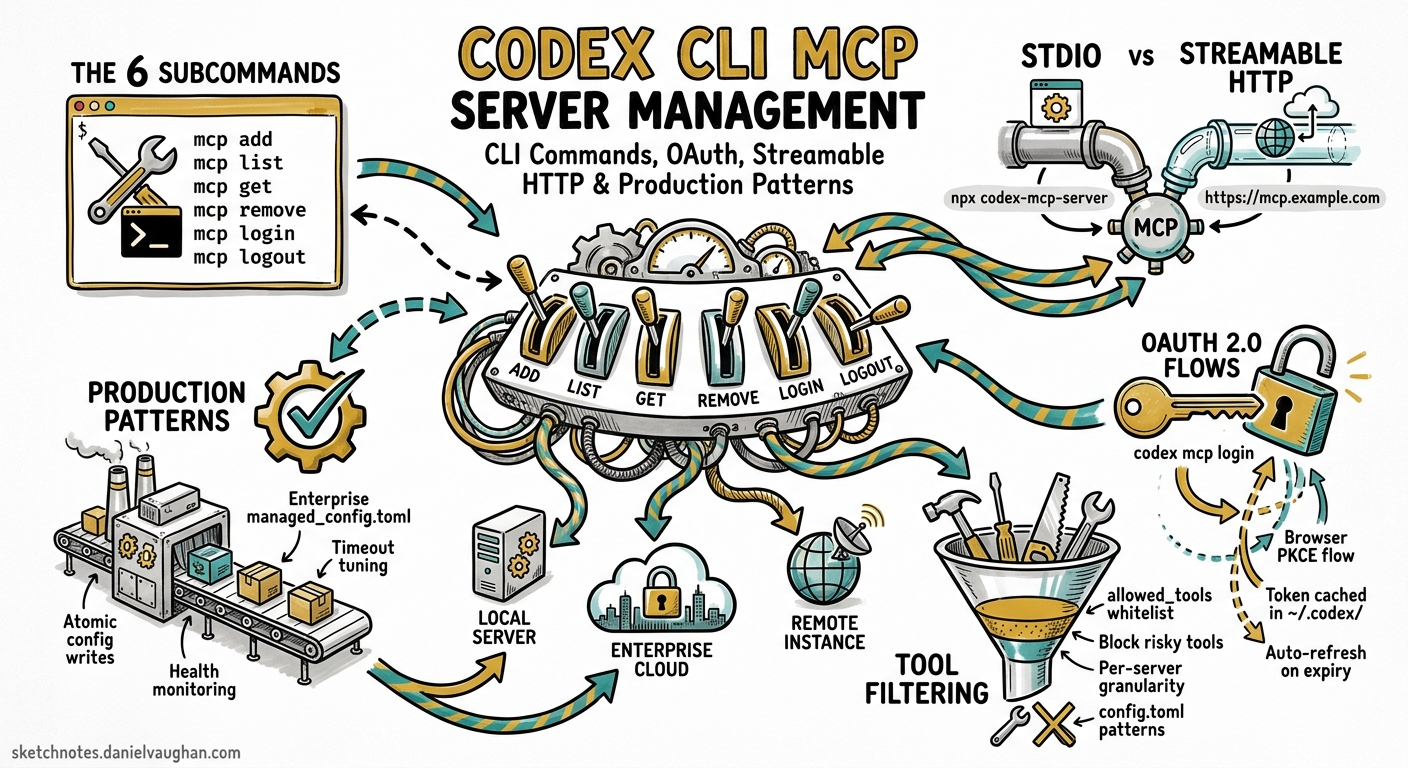
The Model Context Protocol has become the standard integration surface for Codex CLI. Every MCP server you connect — whether a local STDIO process or a remote streamable HTTP endpoint — adds tools to the agent’s repertoire. Managing those servers well is the difference between a responsive, secure agent session and a sluggish, over-privileged one.
Since March 2026, Codex CLI has shipped a dedicated codex mcp subcommand family that handles server registration, authentication, inspection, and removal entirely from the terminal1. Combined with the TOML-based configuration system for tool filtering, approval modes, and timeout tuning, the MCP management surface now covers everything from quick local experiments to locked-down enterprise deployments.
This article is the comprehensive reference for that surface.
The codex mcp Subcommand Family
Six subcommands cover the full lifecycle of an MCP server connection12:
| Subcommand | Purpose |
|---|---|
codex mcp add <name> |
Register a new STDIO or HTTP server |
codex mcp list |
Show all configured servers with auth status |
codex mcp get <name> |
Display detailed config for one server |
codex mcp remove <name> |
Delete a server entry from config.toml |
codex mcp login <name> |
Start an OAuth 2.0 flow for an HTTP server |
codex mcp logout <name> |
Remove stored OAuth credentials |
All mutations persist atomically to ~/.codex/config.toml (or $CODEX_HOME/config.toml) via the internal ConfigEditsBuilder, ensuring no partial writes2.
Adding a STDIO Server
STDIO servers run as local child processes. The command after -- is the server’s launch command:
# Documentation server via npx
codex mcp add context7 -- npx -y @upstash/context7-mcp

# Playwright browser automation
codex mcp add playwright -- npx -y @anthropic/mcp-playwright

# GitHub MCP with environment variable forwarding
codex mcp add github -- npx -y @github/mcp-server \
  --env GITHUB_PERSONAL_ACCESS_TOKEN
The CLI validates the server name, constructs the STDIO transport configuration, and writes the entry to config.toml2.
Adding a Streamable HTTP Server
Streamable HTTP servers are remote endpoints accessible over HTTPS. Pass a URL instead of a launch command:
# Linear's hosted MCP server
codex mcp add linear --url https://mcp.linear.app/sse

# A self-hosted internal server with bearer token
codex mcp add internal-docs --url https://docs.internal.corp/mcp
When adding an HTTP server, the CLI automatically probes for OAuth support. If the server advertises OAuth metadata, the CLI may trigger an interactive login flow immediately2.
Listing and Inspecting Servers
# Human-readable list with auth status
codex mcp list

# JSON output for scripting
codex mcp list --json

# Detailed view of one server
codex mcp get context7
The list command computes authentication status for each server by checking environment variables for bearer tokens, querying the local credential store for OAuth tokens, and probing HTTP servers for OAuth discovery endpoints2.
Removing Servers
codex mcp remove context7
This deletes the server entry from config.toml. It does not remove stored OAuth credentials — use codex mcp logout first if you want a clean removal1.
TOML Configuration Reference
The codex mcp CLI writes configuration entries, but for fine-grained control — tool filtering, approval modes, timeouts — you edit config.toml directly34.
STDIO Server — Full Example
[mcp_servers.docs]
enabled = true
required = true
command = "docs-server"
args = ["--port", "4000"]
env = { "API_KEY" = "value" }
env_vars = ["ANOTHER_SECRET"]
cwd = "/path/to/server"
startup_timeout_sec = 10.0
tool_timeout_sec = 60.0
enabled_tools = ["search", "summarize"]
disabled_tools = ["slow-tool"]
Streamable HTTP Server — Full Example
[mcp_servers.github]
enabled = true
required = true
url = "https://github-mcp.example.com/mcp"
bearer_token_env_var = "GITHUB_TOKEN"
http_headers = { "X-Custom" = "value" }
env_http_headers = { "X-Auth" = "AUTH_ENV_VAR" }
startup_timeout_sec = 10.0
tool_timeout_sec = 60.0
enabled_tools = ["list_issues", "get_file_contents"]
disabled_tools = ["delete_issue"]
scopes = ["repo"]
Key Configuration Parameters
| Key | Type | Default | Description |
|---|---|---|---|
enabled |
bool | true |
Activate or deactivate without removing config |
required |
bool | false |
Fail session startup if server cannot connect |
command |
string | — | STDIO: launch command |
args |
array | [] |
STDIO: command arguments |
env |
table | {} |
STDIO: inline environment variables |
env_vars |
array | [] |
STDIO: forward named env vars from host |
cwd |
string | — | STDIO: working directory |
url |
string | — | HTTP: server endpoint URL |
bearer_token_env_var |
string | — | HTTP: env var containing bearer token |
http_headers |
table | {} |
HTTP: static request headers |
env_http_headers |
table | {} |
HTTP: headers sourced from env vars |
startup_timeout_sec |
float | 10.0 |
Seconds to wait for server initialisation |
tool_timeout_sec |
float | 60.0 |
Seconds to wait for tool execution |
enabled_tools |
array | all | Allow-list of exposed tool names |
disabled_tools |
array | [] |
Deny-list applied after enabled_tools |
default_tools_approval_mode |
string | — | "auto", "prompt", or "approve" |
scopes |
array | — | OAuth scopes to request |
oauth_resource |
string | — | OAuth resource indicator |
experimental_environment |
string | — | Target execution environment |
OAuth Authentication Flows
Streamable HTTP servers increasingly require OAuth 2.0 authentication. Codex CLI implements a full OAuth flow with local callback handling13.
How It Works
sequenceDiagram
    participant Dev as Developer
    participant CLI as codex mcp login
    participant Browser as Browser
    participant Server as MCP Server

    Dev->>CLI: codex mcp login github
    CLI->>Server: GET /.well-known/oauth-authorization-server
    Server-->>CLI: OAuth metadata (auth endpoint, token endpoint, scopes)
    CLI->>Browser: Open authorisation URL
    Browser->>Server: User authenticates and authorises
    Server->>CLI: Redirect to localhost callback with auth code
    CLI->>Server: Exchange code for access token
    CLI->>CLI: Store token in local credential store
    CLI-->>Dev: Authentication complete
Configuring the OAuth Callback
By default, Codex binds a temporary HTTP listener on a random port for the OAuth callback. If your OAuth provider requires a fixed callback URL, set these top-level keys in config.toml3:
mcp_oauth_callback_port = 8432
mcp_oauth_callback_url = "http://localhost:8432/oauth/callback"
Scope Resolution
If the MCP server advertises scopes_supported in its OAuth metadata, Codex uses those server-advertised scopes rather than any scopes configured in config.toml3. This prevents misconfiguration where a client requests scopes the server does not recognise. You can still set scopes in your server config as a fallback for servers that do not advertise supported scopes.
Credential Storage
OAuth tokens are stored separately from config.toml in a local credential store. On macOS, Codex uses the system Keychain where available; on Linux, it falls back to file-based encrypted storage2. codex mcp logout <name> removes only the stored credentials — the server configuration remains intact.
Tool Filtering and Approval Modes
Every MCP server can expose dozens of tools. Connecting a GitHub MCP server, for example, might add tools for listing issues, creating pull requests, deleting branches, and managing releases. You rarely want all of them active in every session3.
The Filtering Pipeline
Tool filtering applies in two stages:
enabled_tools— an allow-list. If set, only named tools are exposed to the agent.disabled_tools— a deny-list applied afterenabled_tools. Any tool named here is removed, even if it appeared in the allow-list.
flowchart LR
    A[All Server Tools] --> B{enabled_tools set?}
    B -->|Yes| C[Keep only listed tools]
    B -->|No| D[Keep all tools]
    C --> E{disabled_tools set?}
    D --> E
    E -->|Yes| F[Remove listed tools]
    E -->|No| G[Final tool set]
    F --> G
Per-Tool Approval Overrides
Beyond the server-level default_tools_approval_mode, you can set approval behaviour per tool4:
[mcp_servers.chrome_devtools]
url = "http://localhost:3000/mcp"
enabled_tools = ["open", "screenshot", "click"]
default_tools_approval_mode = "auto"

[mcp_servers.chrome_devtools.tools.click]
approval_mode = "approve"
Here, open and screenshot run automatically, but click always requires explicit user approval. The three approval modes are3:
auto— tool executes without promptingprompt— agent sees the tool but must request permission each callapprove— the tool call is shown to the user for explicit approval before execution
Project-Scoped vs User-Scoped Configuration
MCP servers can be registered at two levels34:
| Scope | File | Use Case |
|---|---|---|
| User | ~/.codex/config.toml |
Personal servers used across all projects |
| Project | .codex/config.toml |
Team-shared servers specific to a repository |
Project-scoped MCP configuration only loads from trusted projects. The first time Codex encounters a .codex/config.toml in an untrusted directory, it prompts for trust confirmation before activating any servers defined there4.
Team Configuration Pattern
For shared team setups, commit a .codex/config.toml in the repository root:
# .codex/config.toml — checked into version control

[mcp_servers.playwright]
command = "npx"
args = ["-y", "@anthropic/mcp-playwright"]
enabled_tools = ["navigate", "screenshot", "click", "fill"]
default_tools_approval_mode = "auto"
tool_timeout_sec = 30.0

[mcp_servers.sentry]
url = "https://mcp.sentry.dev/sse"
enabled_tools = ["search_issues", "get_issue_details"]
default_tools_approval_mode = "auto"
Individual developers can then override or supplement these in their user-scoped config.toml. The configuration hierarchy applies: project config is merged with user config, and user config takes precedence on conflicts4.
Plugin-Provided MCP Servers
Codex plugins can bundle their own MCP servers. When a plugin includes an MCP server, you manage it through the plugin’s namespace rather than the top-level mcp_servers table5:
[plugins."sample@test".mcp_servers.sample]
enabled = true
default_tools_approval_mode = "prompt"
enabled_tools = ["read", "search"]

[plugins."sample@test".mcp_servers.sample.tools.search]
approval_mode = "approve"
This keeps plugin-provided servers isolated from your manually configured servers, preventing naming collisions and making it easy to enable or disable an entire plugin’s tool surface with a single toggle.
Enterprise Governance with requirements.toml
Enterprise administrators can constrain MCP configuration through requirements.toml6. This prevents developers from connecting arbitrary MCP servers in managed environments:
# requirements.toml — admin-enforced

[mcp_servers]
# Only allow servers matching these URL patterns
allowed_urls = ["https://mcp.internal.corp/*", "https://github-mcp.example.com/*"]

# Block STDIO servers entirely in managed environments
allow_stdio = false
When a developer’s config.toml includes an MCP server that violates requirements.toml constraints, Codex falls back to the nearest compliant configuration and notifies the user6. The codex doctor command (introduced in v0.131.0) now includes MCP server health in its diagnostic output, verifying connectivity, authentication status, and policy compliance7.
Production Configuration Patterns
Pattern 1: Minimal Surface Area
Start with the smallest tool set you need. Every registered tool adds its JSON schema to every API request, consuming tokens8:
[mcp_servers.github]
url = "https://api.github.com/mcp"
bearer_token_env_var = "GITHUB_TOKEN"
# Only the three tools this project actually uses
enabled_tools = ["get_file_contents", "list_issues", "create_pull_request"]
default_tools_approval_mode = "auto"
Pattern 2: Read-Only by Default, Write on Approval
For servers with destructive capabilities, expose read tools freely but gate writes:
[mcp_servers.database]
command = "npx"
args = ["-y", "@crystaldba/postgres-mcp"]
env_vars = ["DATABASE_URL"]
enabled_tools = ["query", "explain", "list_tables", "describe_table", "execute"]
default_tools_approval_mode = "auto"

[mcp_servers.database.tools.execute]
approval_mode = "approve"
Pattern 3: CI/CD Server Selection
In non-interactive codex exec runs, mark critical servers as required so the pipeline fails fast if a server is unreachable rather than silently degrading:
[mcp_servers.github]
url = "https://api.github.com/mcp"
bearer_token_env_var = "GITHUB_TOKEN"
required = true
startup_timeout_sec = 15.0

[mcp_servers.sentry]
url = "https://mcp.sentry.dev/sse"
required = false  # nice to have, not a hard dependency
Pattern 4: Environment-Specific Forwarding
Use env_vars with the source attribute to forward secrets from different stores depending on execution environment:
[mcp_servers.internal]
command = "internal-mcp-server"
env_vars = [
  "API_KEY",
  { name = "REMOTE_TOKEN", source = "remote" }
]
The source = "remote" directive tells Codex to resolve the variable from the remote environment when running via codex cloud exec, rather than the local shell3.
Troubleshooting MCP Connections
When an MCP server fails to connect or tools behave unexpectedly, use these diagnostic steps:
- Check server status:
codex mcp listshows connectivity and auth status for all servers. - Inspect configuration:
codex mcp get <name>displays the full TOML entry including resolved environment variables. - Run diagnostics:
codex doctor(v0.131.0+) includes MCP server health checks7. - Increase timeouts: Servers loading large schemas may need
startup_timeout_secabove the 10-second default. - Check tool filtering: If a tool you expect is missing, verify it is not excluded by
enabled_toolsordisabled_tools. - Re-authenticate: For OAuth servers,
codex mcp logout <name>followed bycodex mcp login <name>forces a fresh token exchange.
What Is Missing — and What Is Coming
As of v0.131.0, two notable gaps remain in the codex mcp CLI910:
- No
enable/disablesubcommand — You cannot temporarily deactivate a server without editingconfig.tomlmanually. A feature request forcodex mcp enable|disable <server>has been filed9. - No tool listing or validation — The CLI cannot enumerate which tools a server exposes or validate that a server responds correctly before you start a session. A proposal for
codex mcp validateandcodex mcp tools <server>is under discussion10.
Both features are expected in the v0.132.x cycle based on the current GitHub issue triage.
Citations
-
[Model Context Protocol — Codex OpenAI Developers](https://developers.openai.com/codex/mcp) -
[MCP CLI Commands — openai/codex DeepWiki](https://deepwiki.com/openai/codex/6.3-mcp-cli-commands) -
[Configuration Reference — Codex OpenAI Developers](https://developers.openai.com/codex/config-reference) -
[Sample Configuration — Codex OpenAI Developers](https://developers.openai.com/codex/config-sample) -
[Codex CLI Plugin Marketplace — Remote Installation, Workspace Sharing, and Bundled Hooks Codex Blog](https://codex.danielvaughan.com/2026/05/08/codex-cli-plugin-marketplace-remote-install-workspace-sharing-bundled-hooks/) -
[Managed Configuration — Codex OpenAI Developers](https://developers.openai.com/codex/enterprise/managed-configuration) -
Add
codex mcp enable|disable <server>CLI subcommands — GitHub Issue #16439 ↩ ↩2 -
MCP CLI should expose validation, tool listing, and enable — GitHub Issue #20195 ↩ ↩2